
Within the Workflow builder, you may want to set up an automated sequence of SMS messages to request reviews from customers who recently attended a class. Here’s a sample Workflow showing you how you can create this based on a tag.
Steps to Create the Workflow
Create a New Workflow:
- Start by creating a new Workflow.
Set the Trigger:
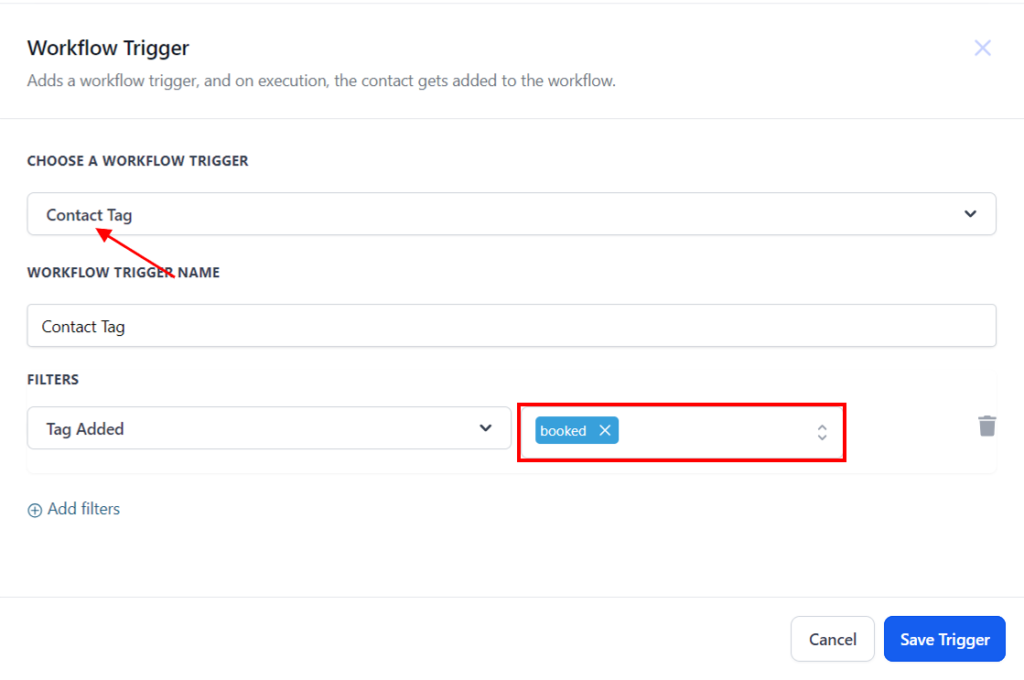
- In the Workflow builder, add a trigger for “Contact Tag” and determine which tag you want this to be based on.
Set the Trigger:
- In the Workflow builder, add a trigger for “Contact Tag” and determine which tag you want this to be based on.
Set the Trigger:
- In the Workflow builder, add a trigger for “Contact Tag” and determine which tag you want this to be based on.
Add Workflow Actions:
- Save this trigger and then add your Workflow actions.
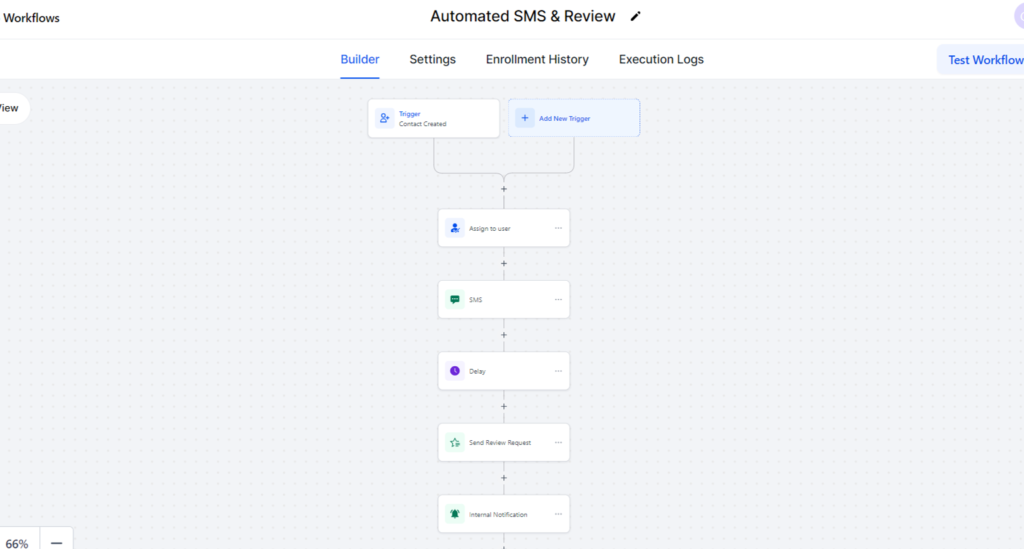
In this example, add the following actions:
- Assign To User: assign the task to a specific user to ensure accountability.
- Send SMS: send a personalized SMS message thanking the customer for attending and requesting a review.
- Delay: add a delay to monitor if the customer responds within a set period (e.g., 7 days).
- Send Review Request: if no response, send a gentle reminder SMS requesting a review.
- Internal Notification: notify the team internally about the status and actions taken in the workflow.
You can customize these communications as you’d like, adding or removing actions.
Save and Publish:
- Save and publish the Workflow for it to function.