
Make your clients feel special on their gym anniversary with our Member Anniversary Workflow. Our system triggers personalized messages to your team, allowing you to send a customized congratulatory note or even a fun gif. Don’t miss this opportunity to strengthen your client relationships.
Why get the Member Anniversary Workflow?
Celebrate your members’ milestones with our exclusive member anniversary workflow. Stand out from the rest and show your members you value their loyalty. Don’t treat them as just another number.
What type of gym is this workflow best suited for?
Transform your gym into a thriving community with our Anniversary workflow. Celebrate each member’s milestone and build lasting relationships.
How does this workflow get triggered?
You can easily automate your client outreach and personalize communication with ease. Trigger workflows based on sign-up dates and send customized messages automatically.
Creating the Member Anniversary Workflow
Setting up a Member Anniversary Workflow allows you to automate the process of celebrating member anniversaries with personalized messages and offers. Follow these steps to create an effective Member Anniversary Workflow:
Step 1: Access Workflows
- Log in to your dashboard.
- Navigate to the “Workflows” section from the left sidebar of your dashboard.
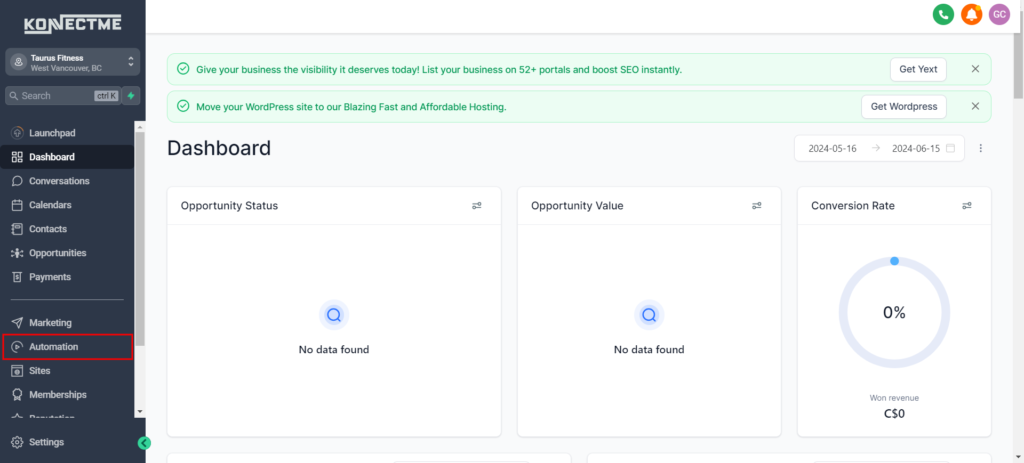
Step 2: Create a New Workflow
- Click on “+ Create Workflow”.
- Choose whether to create the workflow from scratch or use a suitable template.
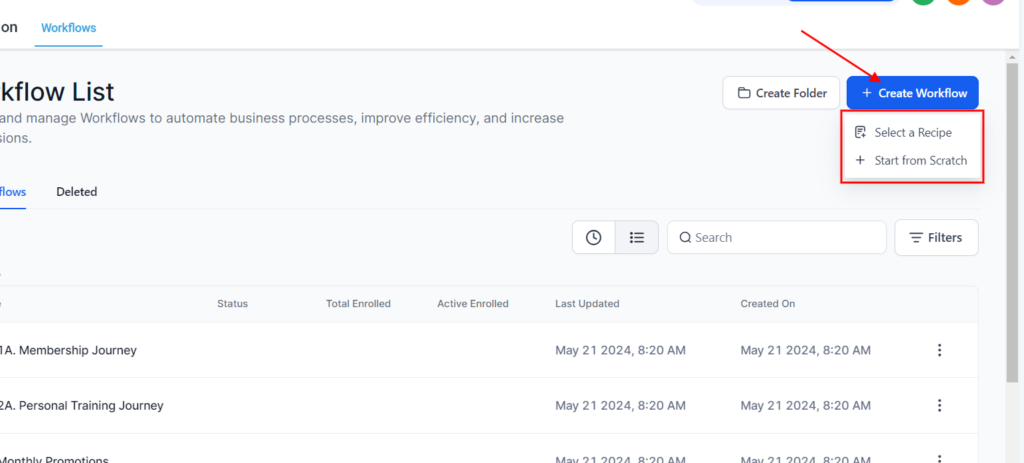
Step 3: Set Trigger
- Choose a trigger to activate the workflow. For anniversaries, select the “Anniversary Reminder” trigger.
- Set the trigger to activate on the member’s anniversary date.
- There is no specific trigger for anniversary workflow unlike “Birthday Reminder” trigger. One way to do this is how way you set up up just like “New Sign Up”
Step 4: Define Actions
- Add actions to your workflow, starting with a custom field with a “Wait” action, then configure it to 365 days. After that, add actions to your workflow as desired, such as email, SMS, etc.
- Personalize the anniversary message with merge tags to include the member’s name and special offers.
- Use rich text formatting to enhance the appearance of the message.
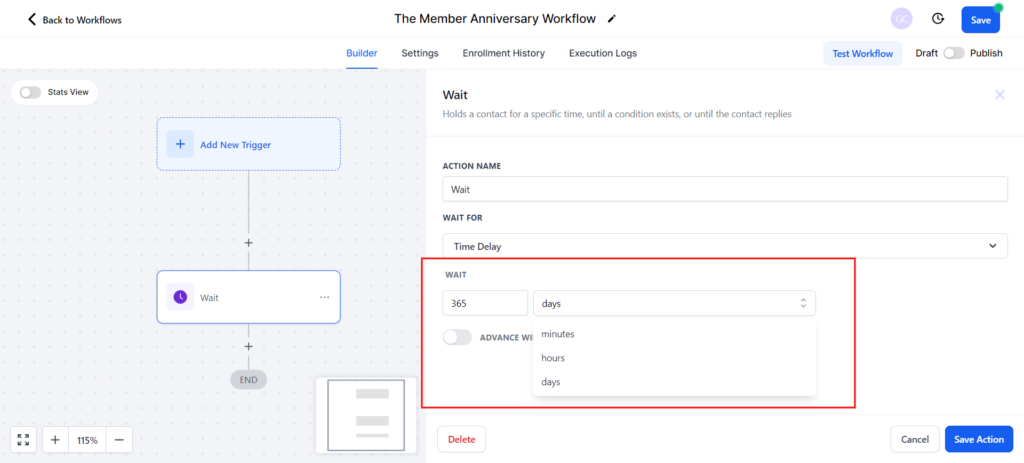
Step 6: Test and Activate
- Preview the workflow to ensure all actions are correctly set up.
- Test the workflow with a test member profile to verify that emails or messages are sent as intended.
- Once satisfied, activate the workflow to start sending anniversary greetings automatically.
Tip:
- Personalization: Use merge tags to make anniversary messages personalized and engaging.
- Automation: Regularly update the workflow to reflect changes in offers or messaging.
- Feedback: Gather feedback from members to optimize the anniversary workflow based on their responses.
By following these steps, you can create an effective Member Anniversary Workflow to enhance member engagement and satisfaction through automated anniversary greetings and offers.