
How to Bulk Add Contacts to a Workflow, Campaign, or Automation
Adding multiple contacts to a workflow, campaign, or automation at once can save time and ensure consistent communication. Follow these steps to bulk add contacts:
Step 1: Access the Contacts Section
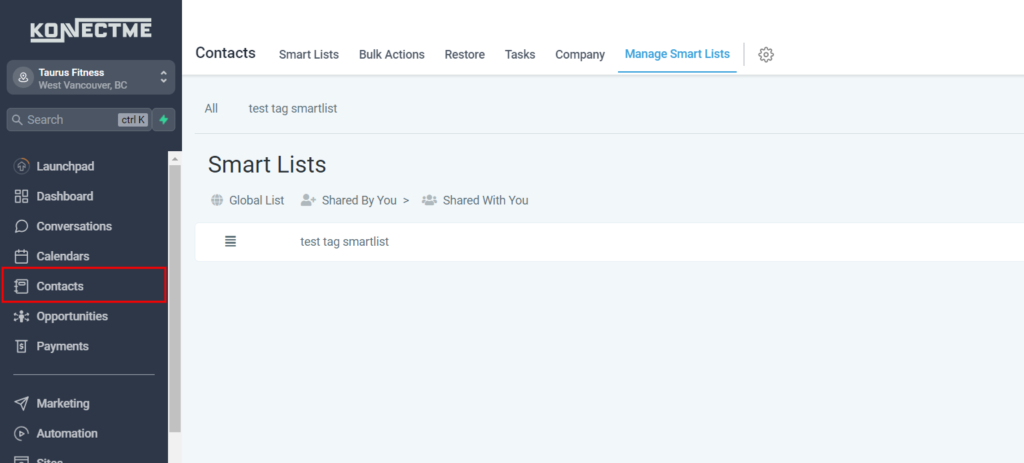
- Log in to your account dashboard.
- Navigate to the “Contacts” section from the left sidebar.
Step 2: Select Contacts
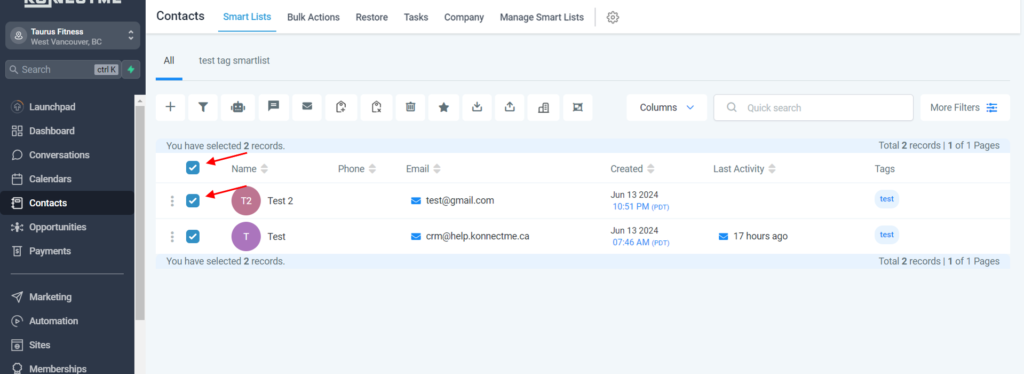
- In the Contacts section, use the checkboxes to select the contacts you want to add to a workflow, campaign, or automation.
- You can also use filters or search options to find specific contacts.
Step 3: Bulk Actions
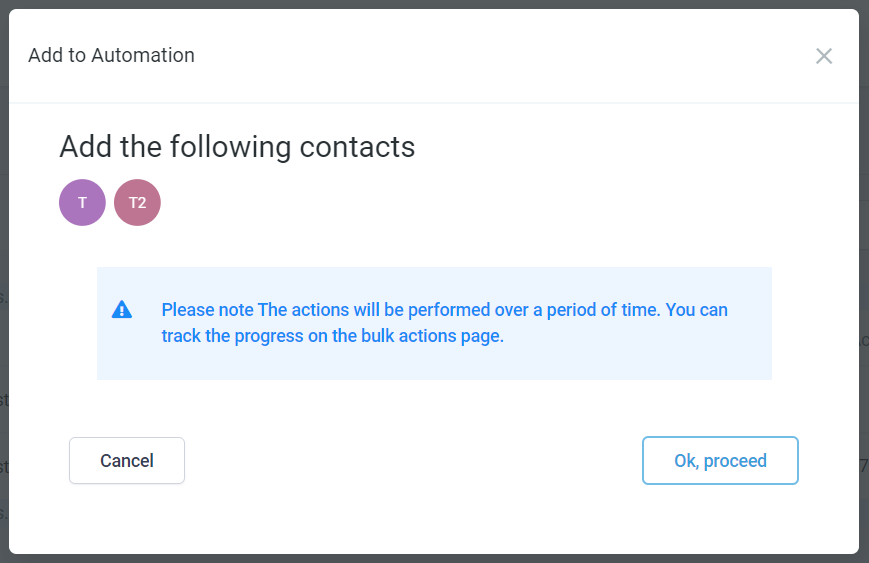
- After selecting the contacts, look for a “Add to Automation” button in the top side bar
- Click on it to reveal smart warning >>> then click proceed.
Step 5: Configure and Confirm
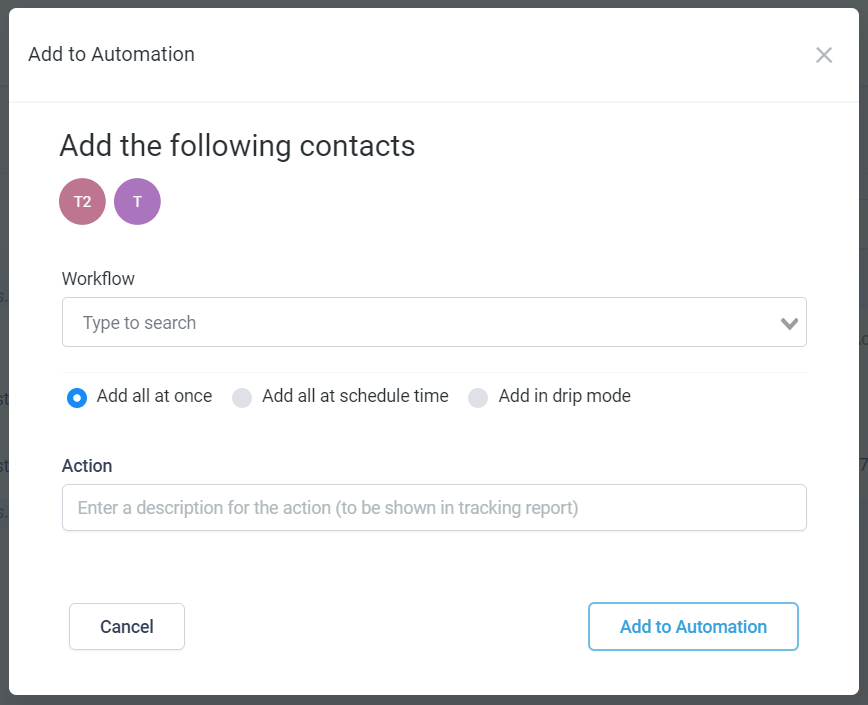
- Select the desired workflow, campaign, or automation from the list.
- Review the settings and ensure everything is configured correctly.
- Click “Confirm” to bulk add the selected contacts.
Tips
- Double-Check Selection: Before confirming, double-check that you have selected the correct contacts.
- Automation Settings: Ensure that the workflow, campaign, or automation settings are appropriate for the selected contacts to avoid any unintended actions.
- Review Results: After adding contacts, monitor the workflow, campaign, or automation to ensure it is running smoothly and achieving the desired results.
By following these steps, you can efficiently bulk add contacts to a workflow, campaign, or automation, streamlining your marketing and communication efforts.