
Within the Contact section of your system, you may delete contacts from time to time for various reasons. Perhaps the information is outdated, they’re no longer a customer, the lead went ‘cold’, etc. You may accidentally delete someone you didn’t mean to delete, and you can restore that deleted contact back into the system. Here’s how:
Step 1: Deleting Contacts
- Within the Contacts section you may check one or more records, click the trashcan icon, and delete the record(s).
- You may also delete an individual from within their Contact Record.
Step 2: Restoring Contacts
There are a few options for restoring contacts – individually or using a bulk action.
Individually Restore Contacts: This is the option for individual contacts you wish to restore one at a time. You may check multiple contacts to restore as well.
- Navigate to Contacts > Restore Contacts.
- Click to check the box next to the Contact(s) you wish to restore.
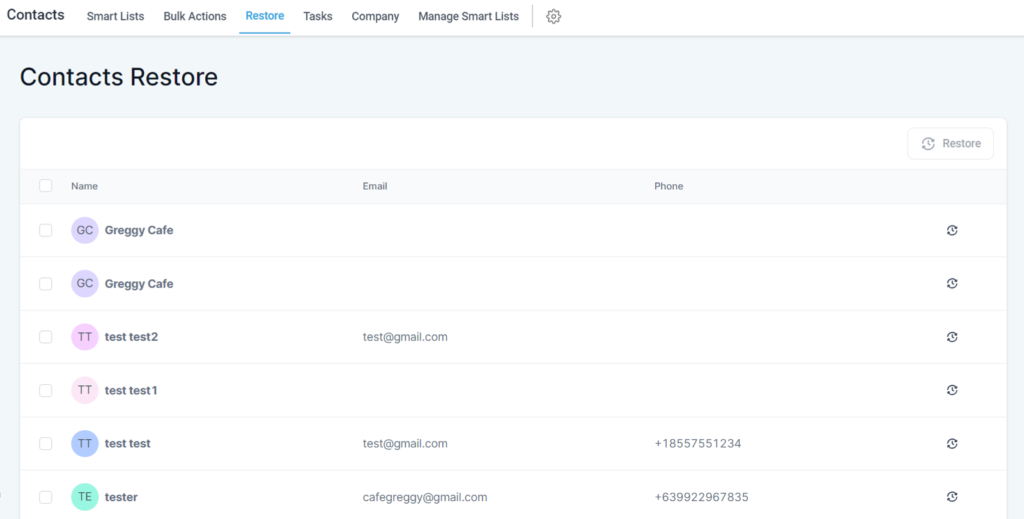
- Click the “Restore” button in the top right.
- Click Confirm in the popup window to confirm the restoration.
- Now the contacts will be back in your Contacts list.
NOTE: You can restore multiple contacts simultaneously.