
Rearranging calendars within a group helps you prioritize and organize your schedule more effectively. Follow these steps to rearrange your calendars:
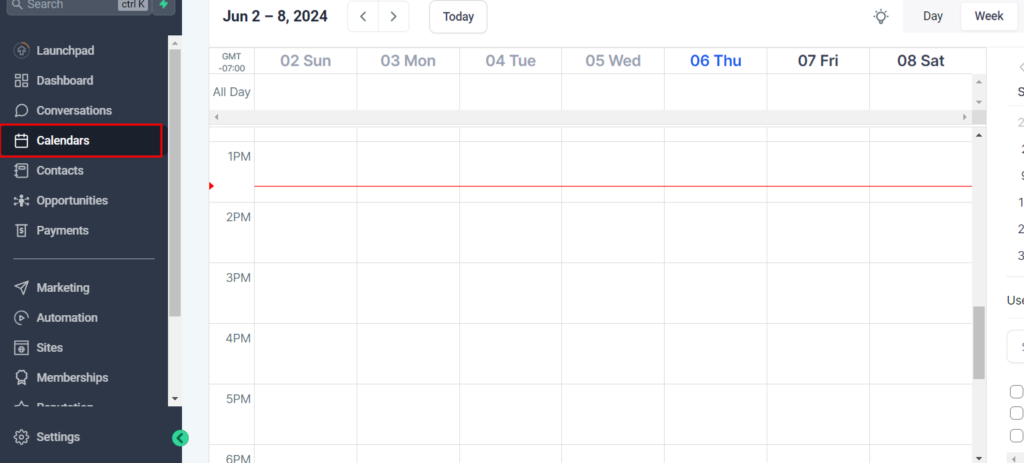
Step 1: Access Calendar Settings
- Open the “Settings” tab from the left sidebar.
- Go to the “Calendars” tab.
Step 2: Select the Group
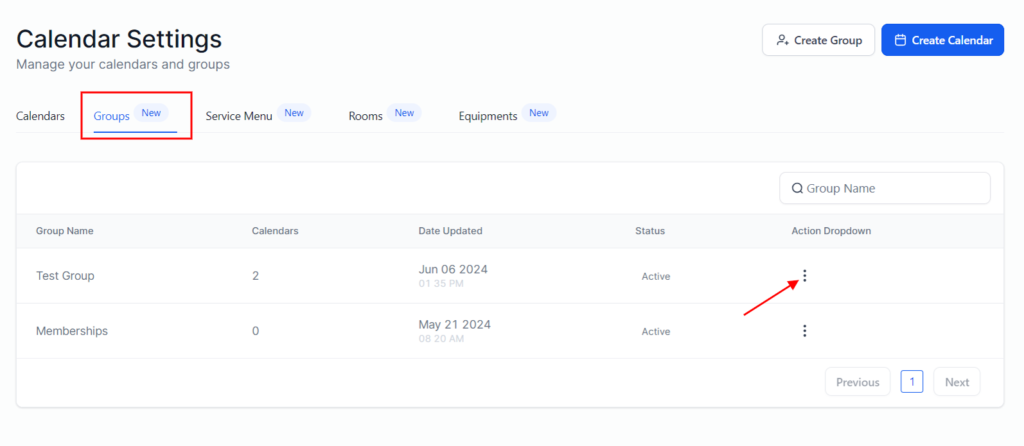
- Locate the group containing the calendars you want to rearrange.
- Click on the group to open its settings.
Step 3: Rearrange Calendars
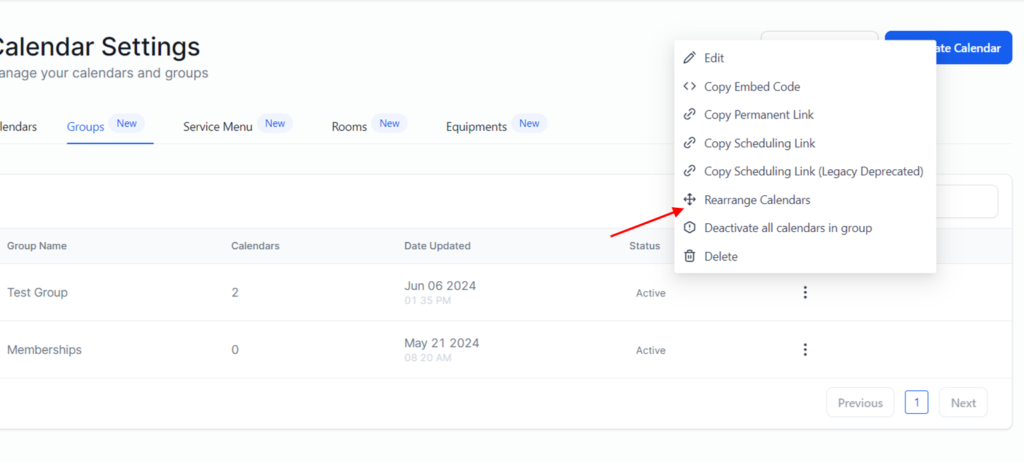
- Click the three dots of the calendar you want to rearrange.
- Click Rearrange Calendar
- Click and hold the calendar you want to move.
- Drag the calendar to its new position within the list.
- Release the calendar to drop it into place.
Step 4: Save Changes
- After rearranging the calendars, make sure to save your changes.
- Confirm that the new order is correctly reflected.