
Duplicating a calendar in can help you manage multiple schedules efficiently. Follow these quick steps to duplicate your calendar:
Step 1: Access the Calendar Settings
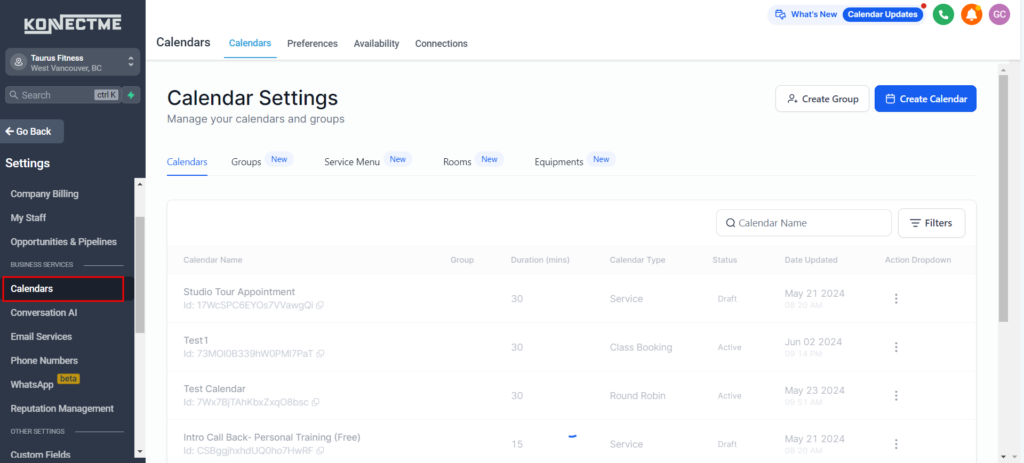
- Navigate to the “Settings” tab on the left sidebar.
- Select the “Calendars” tab.
Step 2: Select the Calendar to Duplicate
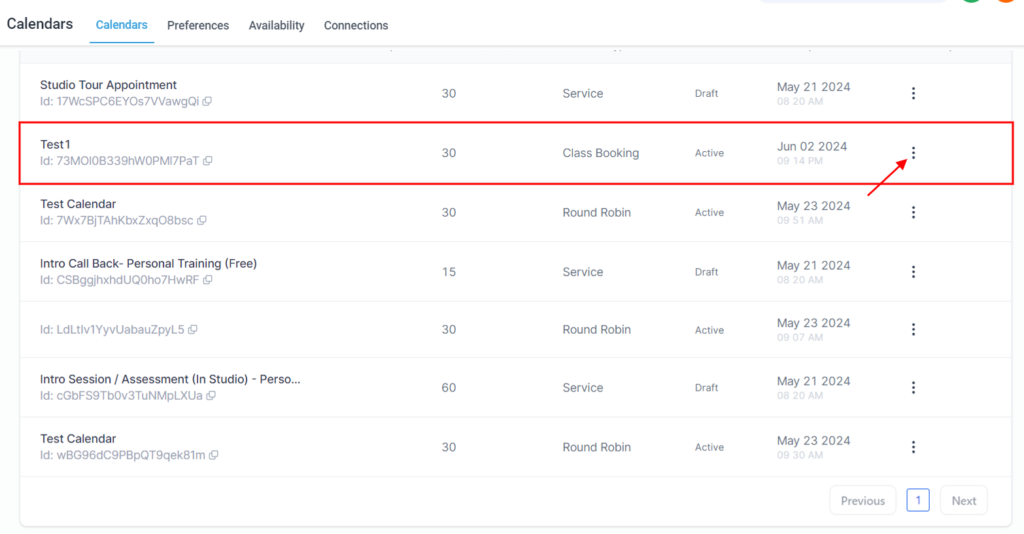
- Find the calendar you want to duplicate.
- Click on the calendar to open its settings.
Step 3: Duplicate the Calendar
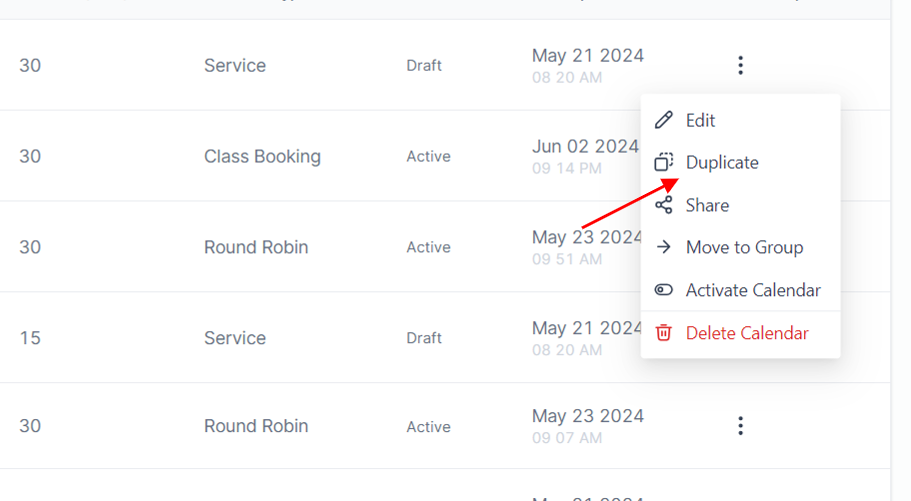
- In the calendar settings, look for the “Duplicate” option.
- Click “Duplicate” to create a copy of the calendar.
Step 4: Customize the New Calendar
- Rename the duplicated calendar.
- Adjust any settings, such as availability and appointment durations, to suit your needs.
Step 5: Save and Use
- Save the new calendar.
- Begin using the duplicated calendar for scheduling.