
Managing multiple workflows can get overwhelming, especially when dealing with complex automations. GoHighLevel provides a great feature to help keep everything organized – Workflow Folders. In this tutorial, we will walk you through the process of organizing your workflows into folders.
Step 1: Log into Your GoHighLevel Account
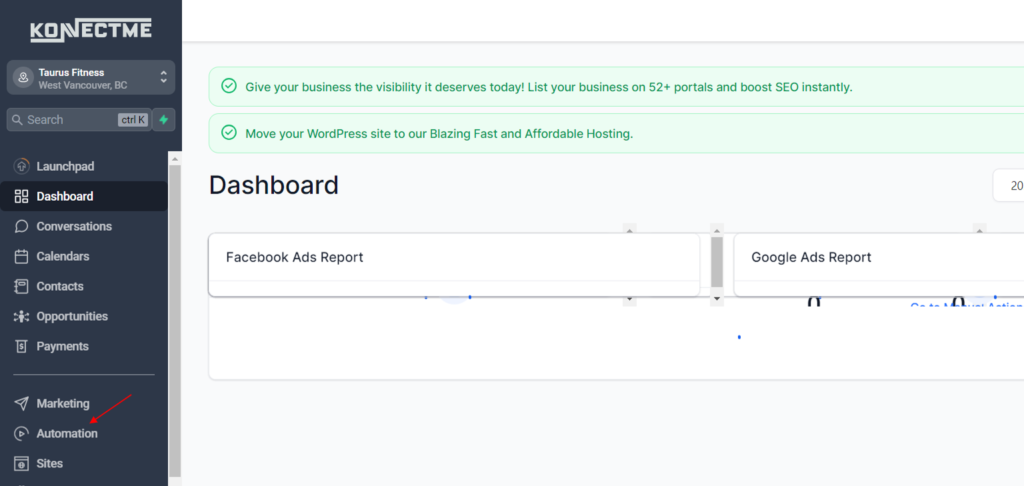
First, access your GoHighLevel account. Once logged in, navigate to the ‘Automations’ section
Step 2: Access the Workflows Section
In here you can either your workflow or create a folder to organize your workflows
Step 3: Create a New Folder
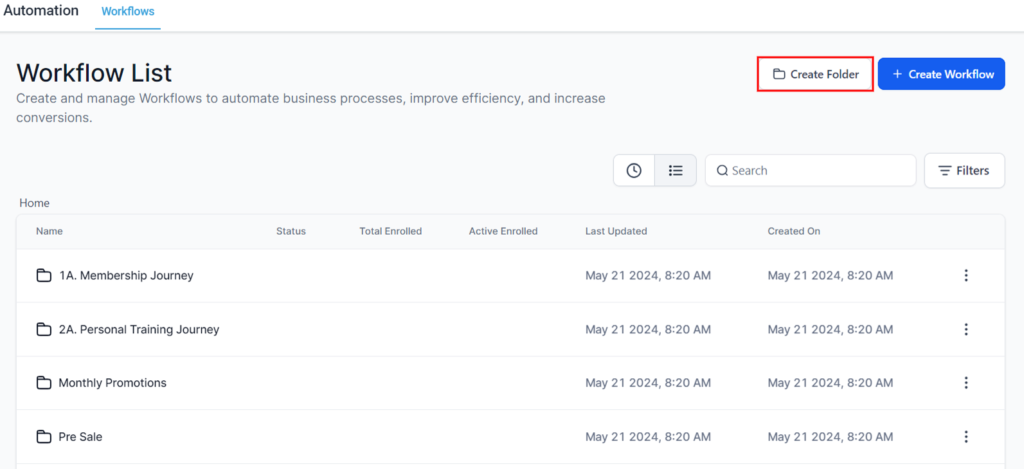
To start organizing, you’ll need to create folders where your workflows will be stored.
- Click the “Create Folder” button or the folder icon at the top right side
- A Window will pop-up, you can then enter a name for your folder that reflects the type of workflows you will store in it (e.g., “Lead Nurturing,” “Customer Follow-ups,” etc.).
- Click “Create” to add the new folder.
Step 4: Move Workflows into Folders
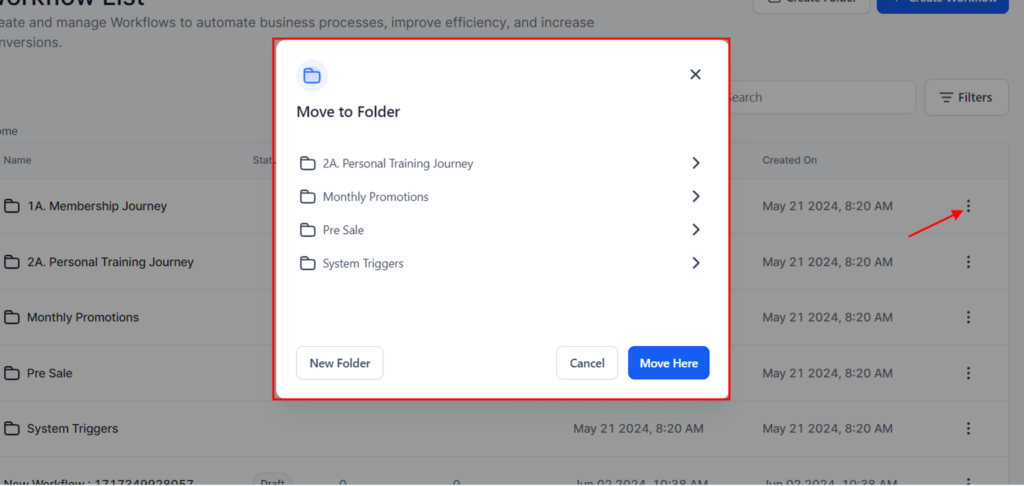
Once your folder is created, you can start moving workflows into it.
- Find the workflow you want to move.
- Click on the three-dot menu (options) next to the workflow.
- Select “Move to Folder.”
- Choose the appropriate folder from the list and click “Move.”
Step 5: Managing Folders
Folders can be managed easily. Here’s how:
- Rename a Folder: Click on the folder name, select “Edit,” and type the new name.
- Delete a Folder: Click on the folder options and select “Delete.” Note that deleting a folder does not delete the workflows inside it; they will be moved back to the main list.
- Reorganize Workflows: You can drag and drop workflows between folders if you need to re-categorize them.
Step 6: Best Practices for Workflow Organization
To maintain a clear and efficient workflow structure, consider the following tips:
- Consistent Naming Conventions: Use clear and descriptive names for both folders and workflows.
- Regular Maintenance: Periodically review your workflows and folders to ensure everything is up-to-date and relevant.
- Categorization: Group workflows by purpose or function (e.g., marketing, sales, support).