You can edit a specific form to fit your needs. From content to stylistic changes, you can completely customize the appearance and information in a form. Follow these steps to create your perfect form:
Step 1: Navigate to the Form Builder. from the Sites menu on the left side of your screen. Here we’ll show you how to edit a Form
Step 2: Click into the Form you want to edit, or Create New Form.
Step 3: On the right and left hand side you’ll see all the options for editing your Form.
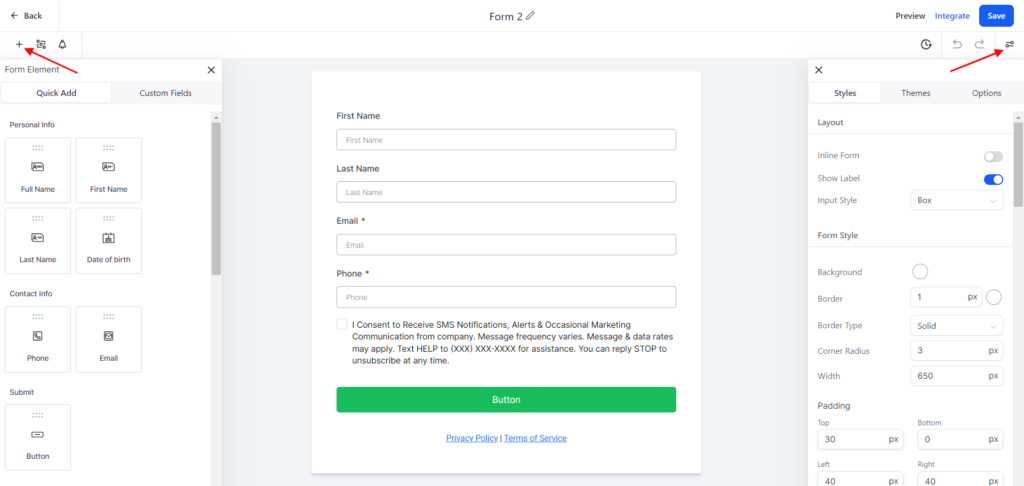
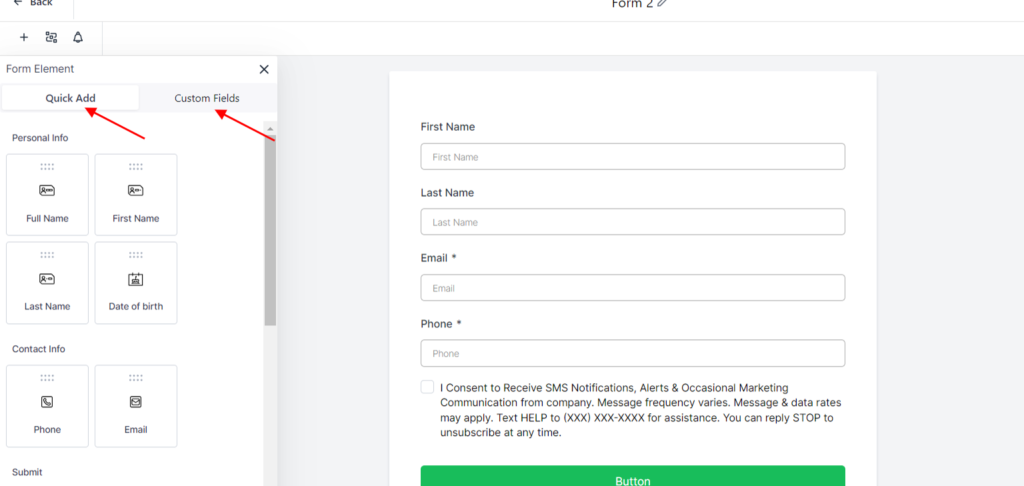
- Under “Add Form Element”, you can click-and-drag standard and/or custom fields onto the form/survey. After you click-and-drag, click on the specific field and the right menu will now allow you to change the field text.
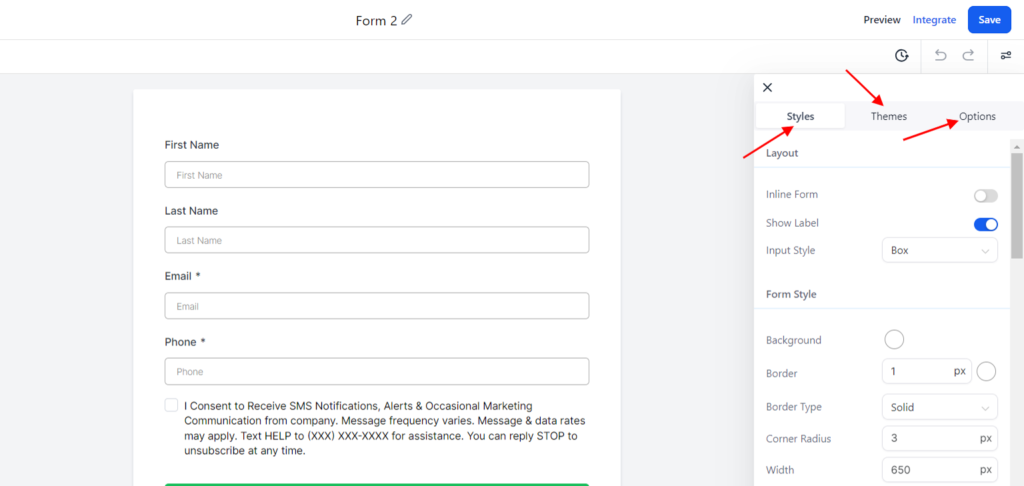
- Under “Styles & Options” you can change the font color, background color, border and more under the Styles Tab
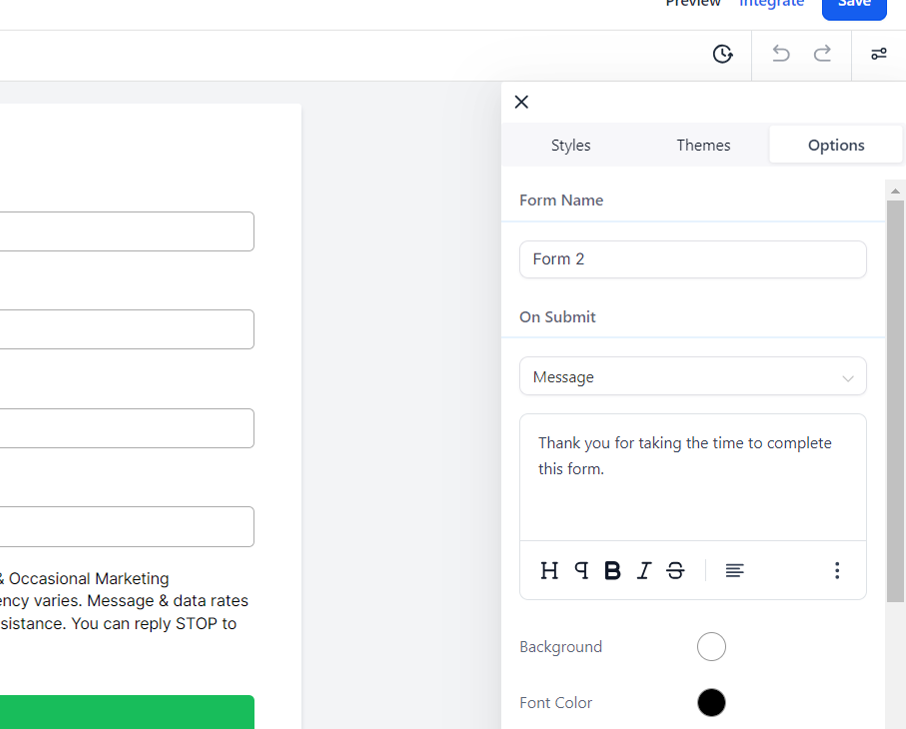
- Under “Options” you can change the form name, add Facebook Pixel information, and more.