
How to schedule, update status, and follow up to appointments
Updated over a week ago
Scheduling an appointment
You can schedule an appointment in 3 ways:
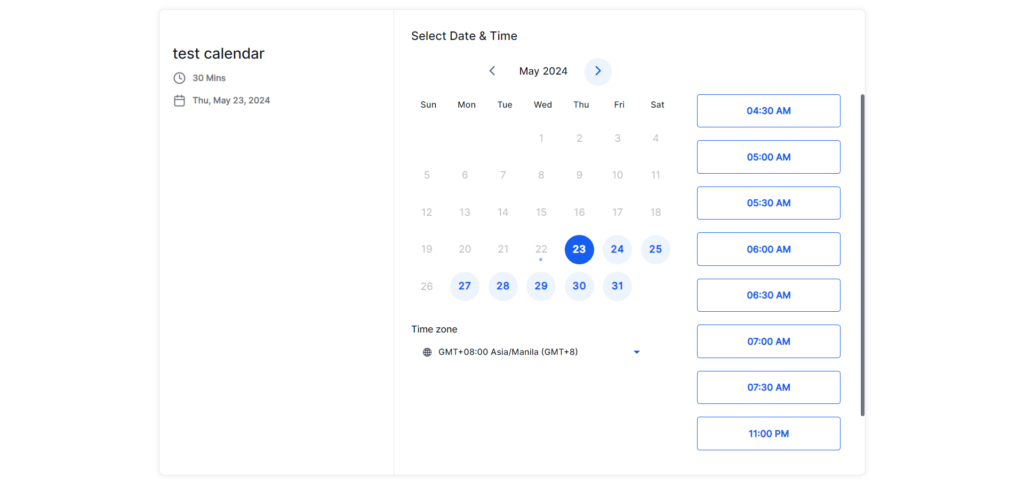
- Allow contacts to book themselves using a calendar link find your calendar link
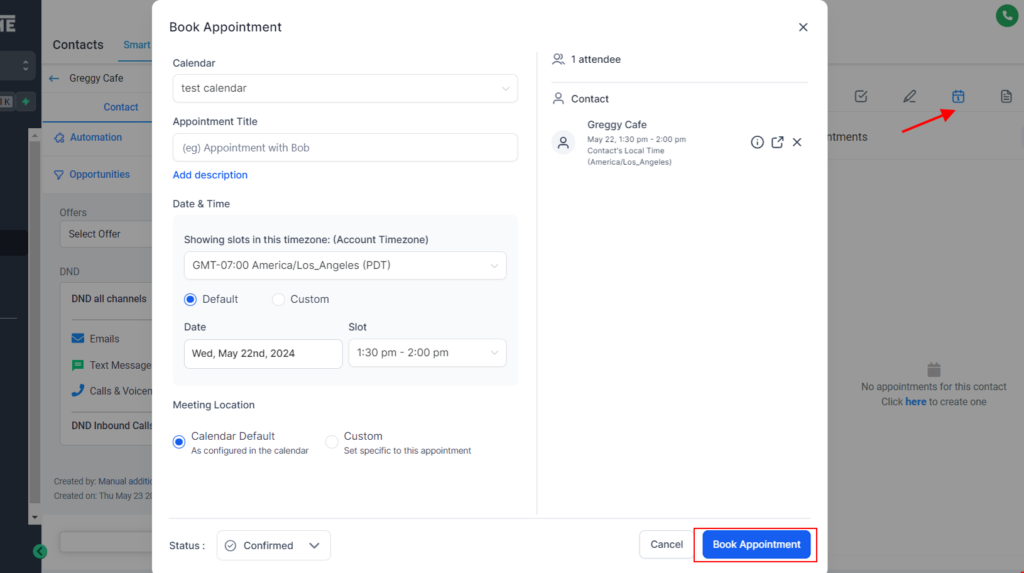
- From a contact detail pag
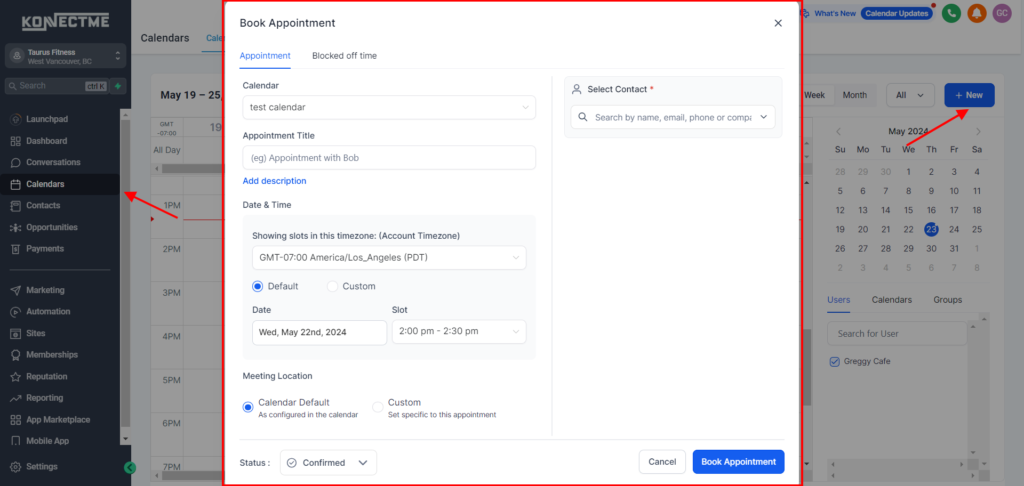
- From the Scheduling Page
Managing Appointment
- View all appointment from the Calendar or Appointments page.
- On the Calendar view, click on the event to edit the appointment
- From the Appointment page, click on the contact name to view and edit their appointments
Updating appointment status
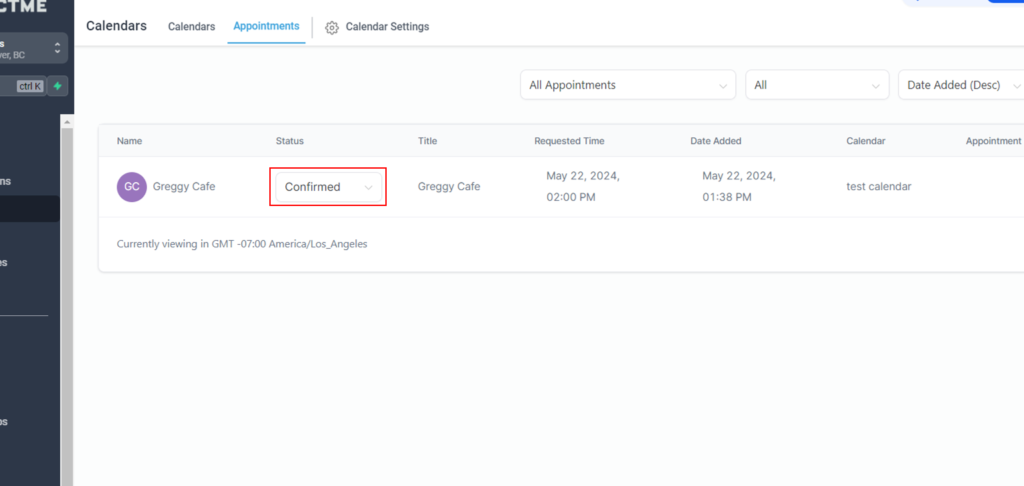
What happens when you update the status?
- Confirmed — this is the default status and contacts will be added into the the Appointment Reminder Workflow
- Reschedule — will open the appointment edit screen to reschedule the appointment. Note, this must be done before the scheduled time.
- No Show — the contact will be added into the Appointment No Show Workflow
- Showed — the contact will be added into the Appointment Showed (No Sign Up) Workflow IF the contact has not purchased a plan within the wait time (default is 72 minutes).