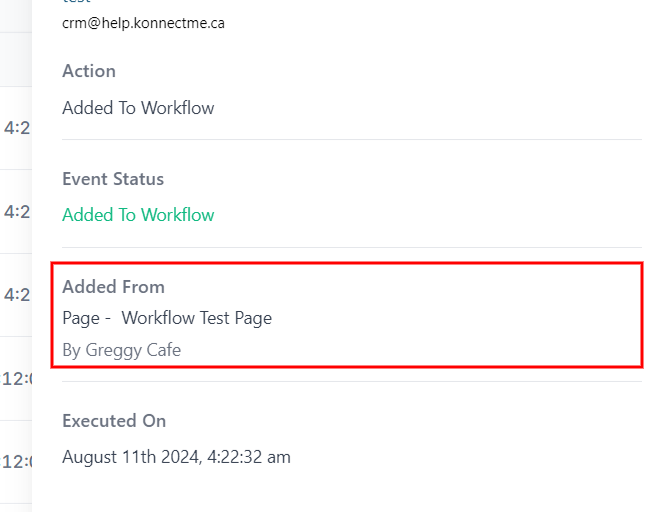
When you see a message in your conversations tab and need to figure out how a contact got added to a workflow, here’s what you do
1. Click on “Conversations”
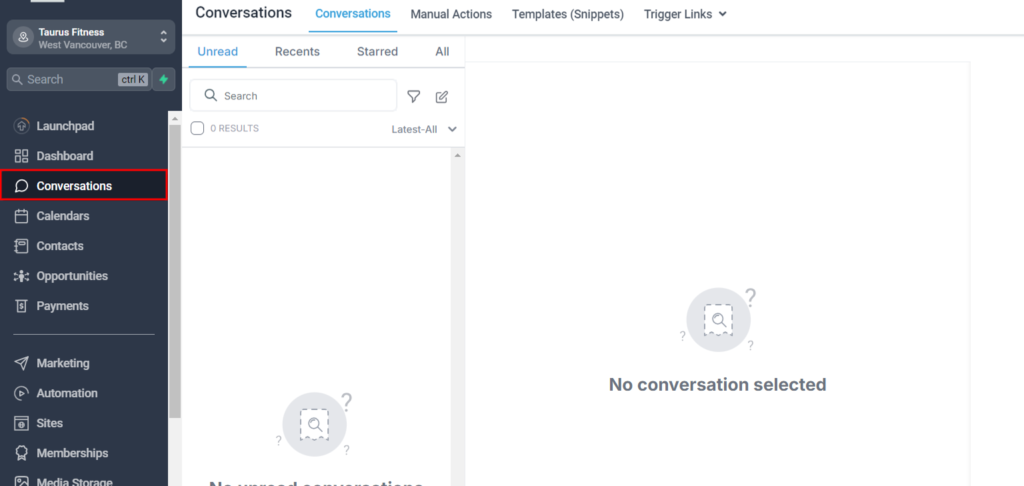
2. Find the contact you want to learn more about
3. you’ll see the conversation with the contact you want to look further into
4. Go to the contact details section
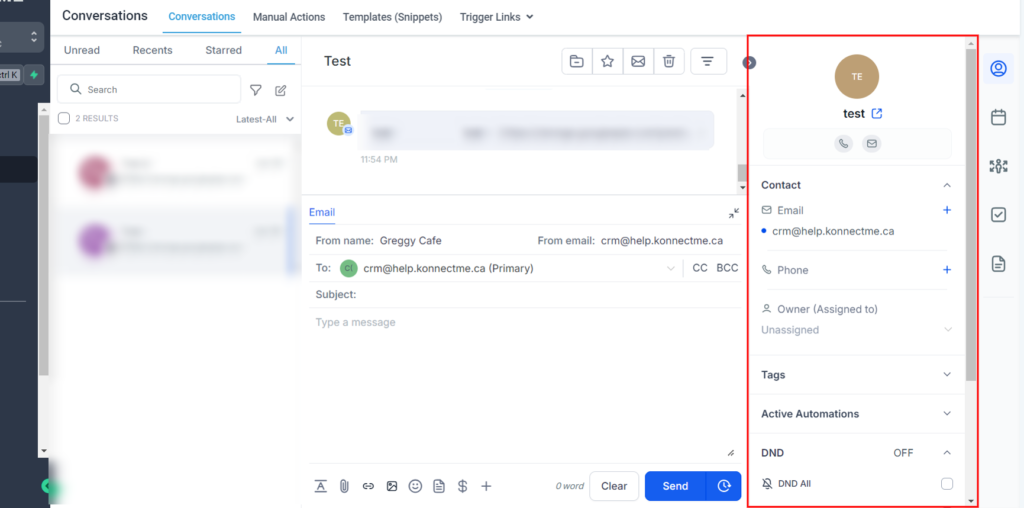
5. Click on the “Profile photo”
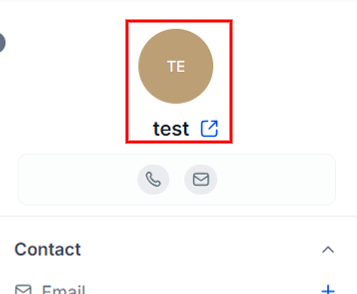
6. This will bring you to the contact record and details
7. Scroll down to the “Active Campaigns/Workflows” to show which workflow the contact is in. NOTE there could be multiple
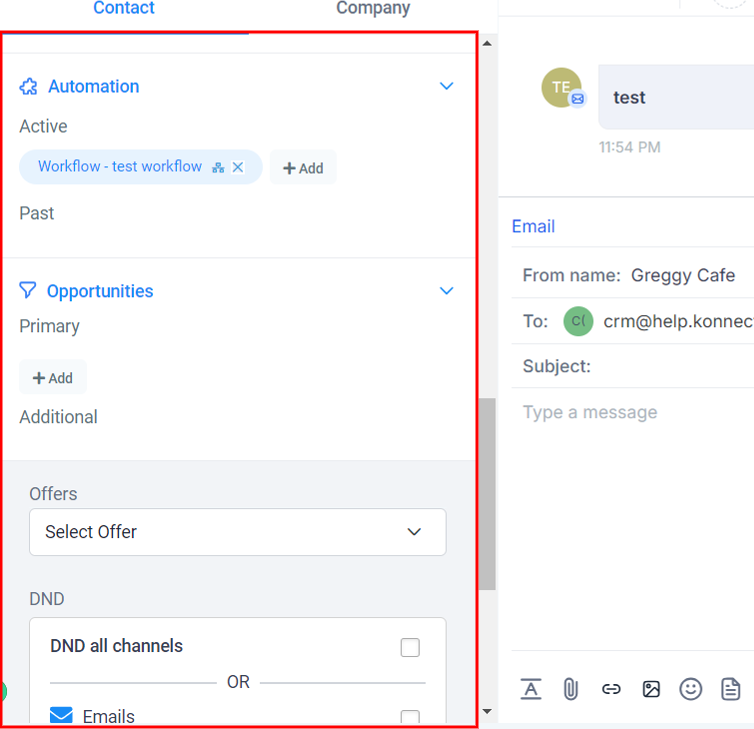
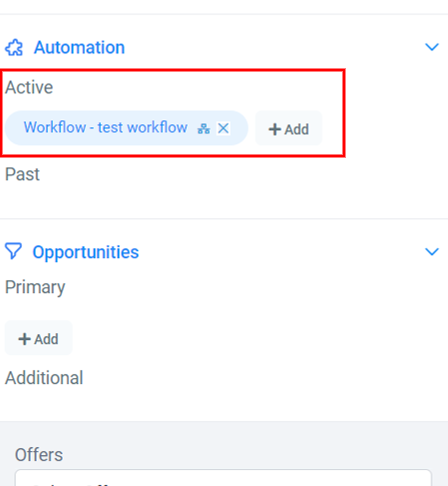
8. Find the campaign you want to look further into
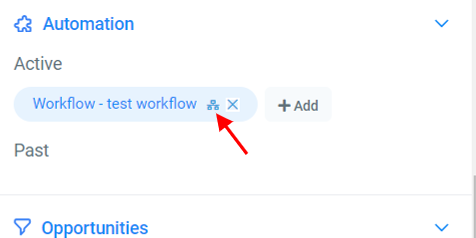
9. Click on “Tree” symbol
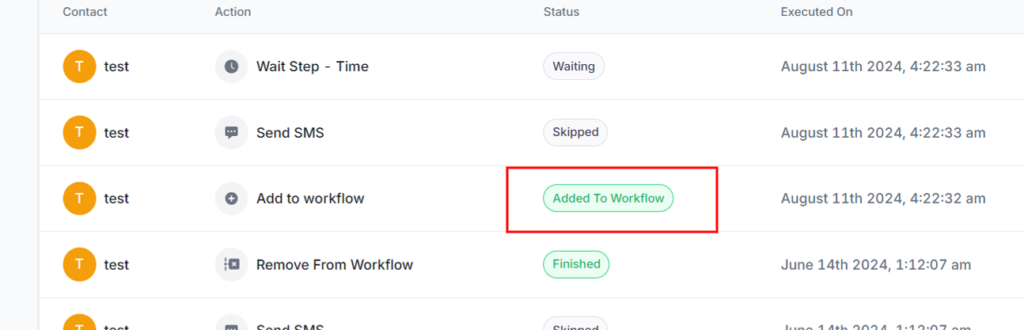
10. this will bring you the workflow history. Locate the “Added to workflow” part
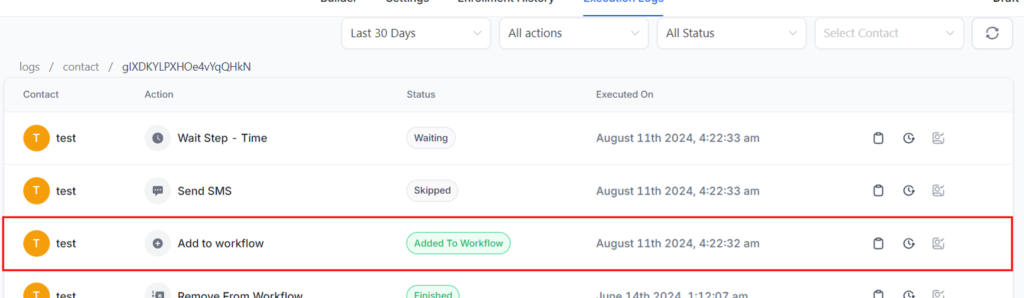
11. find the the “Added to workflow” record
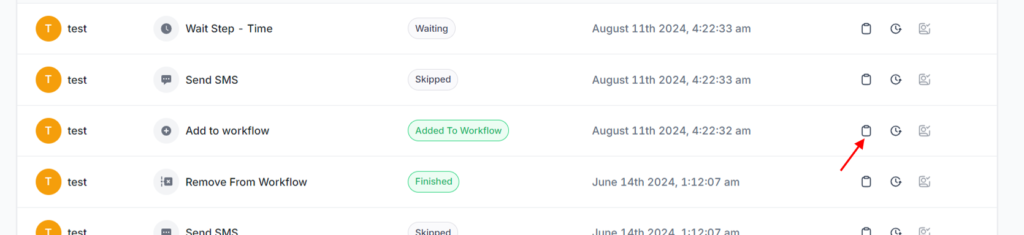
12. Click on the “Clip board”
13. This will give you details on how the contact entered the workflow
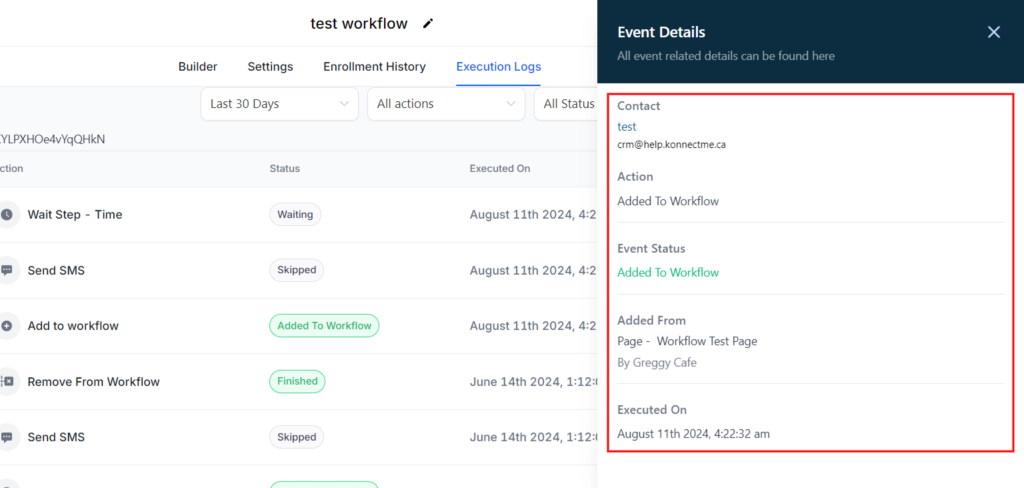
14. Locate the “Added From” and you can determine that it was a trigger in the workflow. Now, go to that workflow to see what the “Trigger” is set to