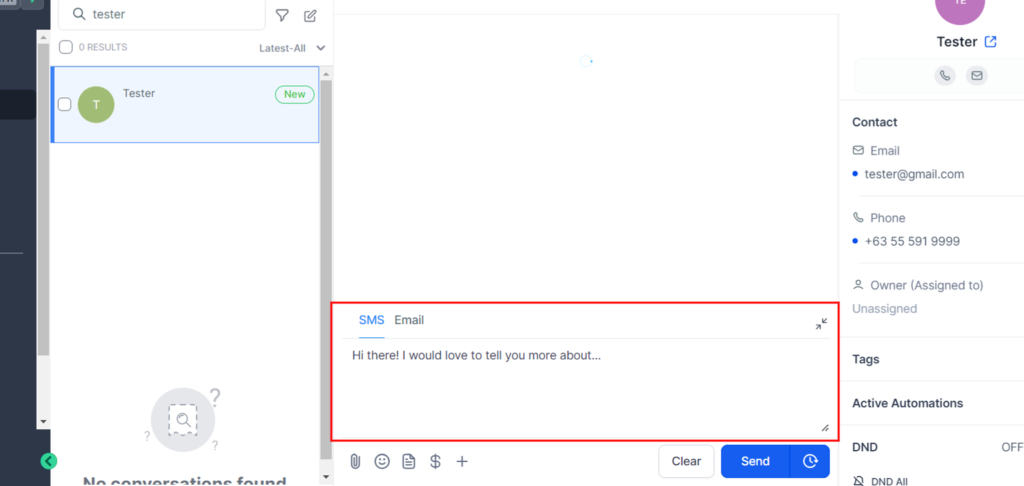
Do you find yourself reiterating the same information over and over? How about sending a templated response with a click of a button?
Template responses can be used to send a text or an email response to common questions. You can use them for appointment links, or other common questions that you find yourself responding to over and over. Save yourself time and use these template responses.
1.log into your account
2. Click on Email Marketing
3. Click on Templates
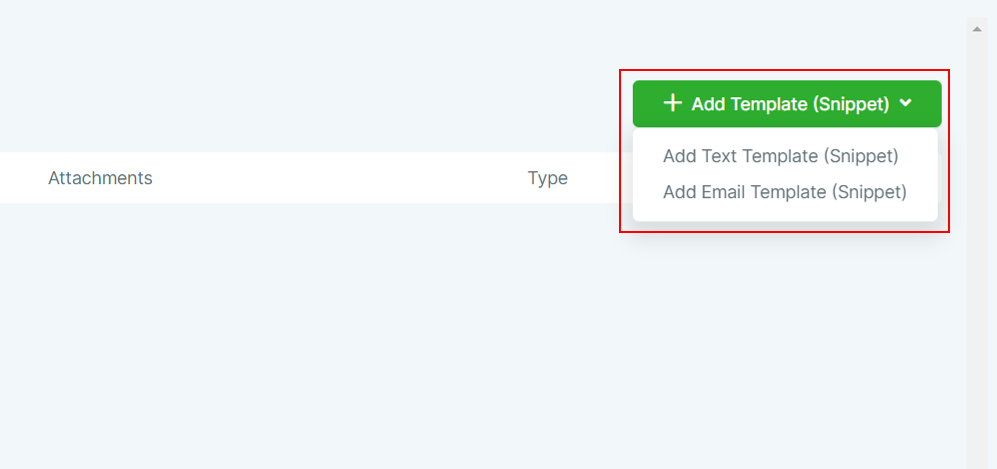
4. Create a text template or an email template
5. Name your template
NOTE: The name you use here is not visible to customers
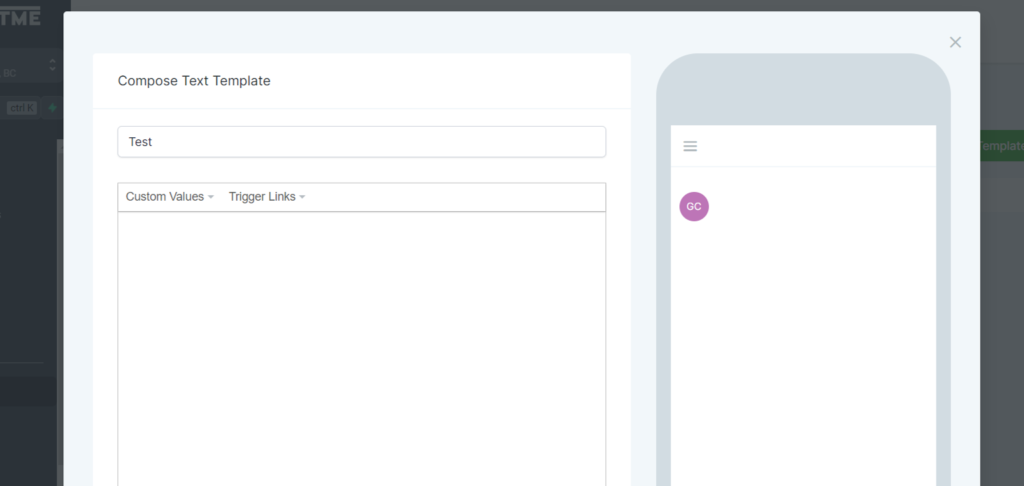
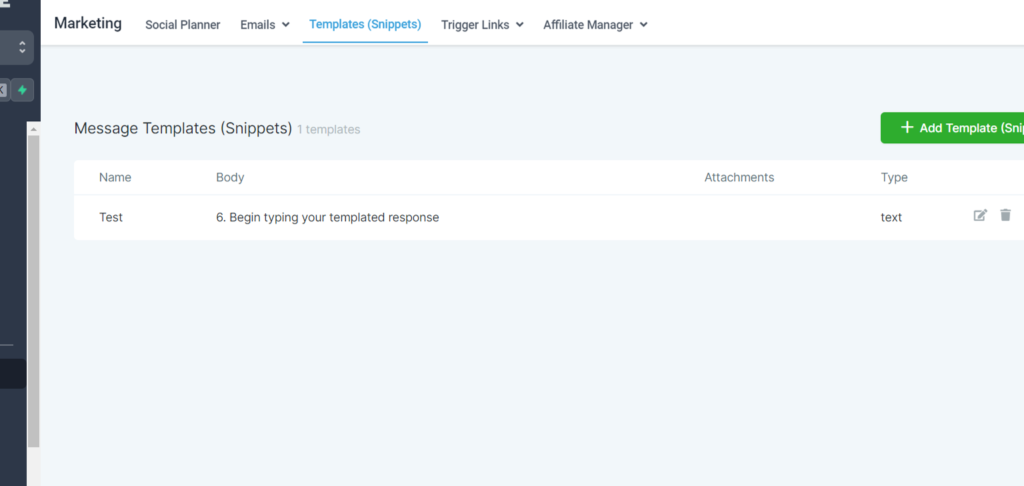
6. Begin typing your templated response
7. you can see what the text will look like in the live demo view
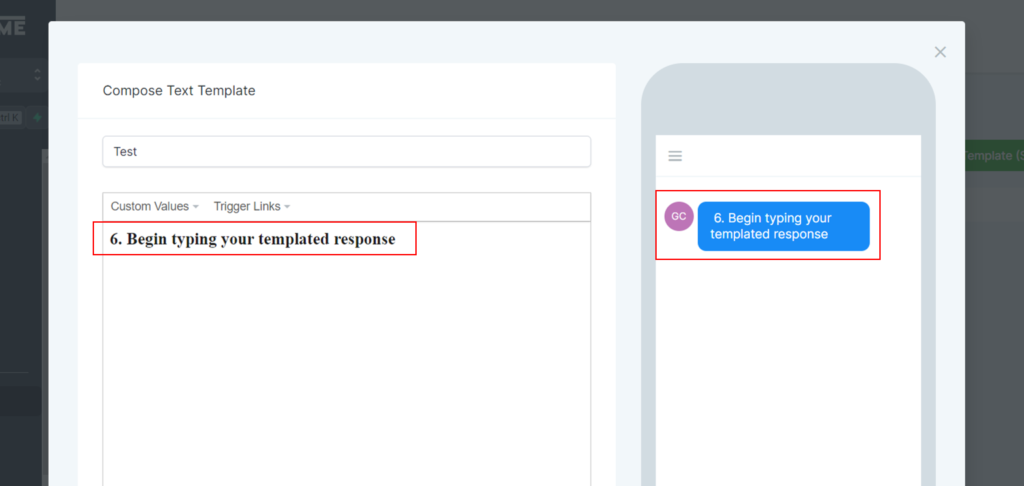
8. Click on Save
9. Your template will live here now, and you can edit or make changes to it later as needed
10. to send a templated response, head over to “conversations”
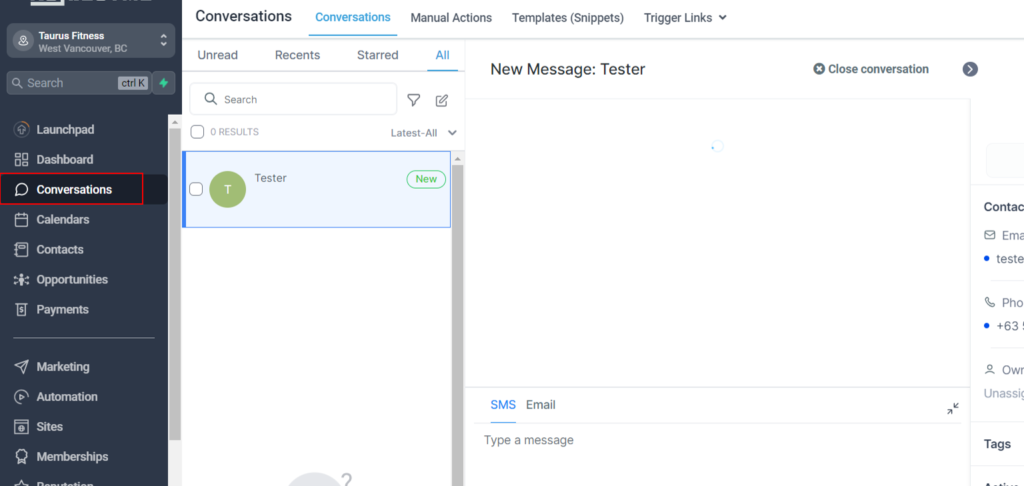
11. From the conversations tab, select the message you want to send a template response to
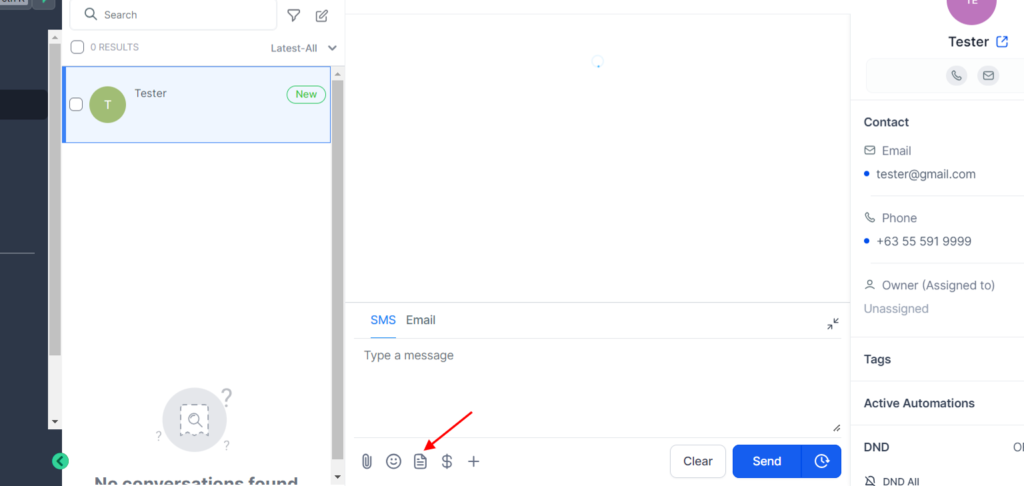
12. Click on Send SMS/Email
14. Click on the use a template button
15. From the drop down, select your template
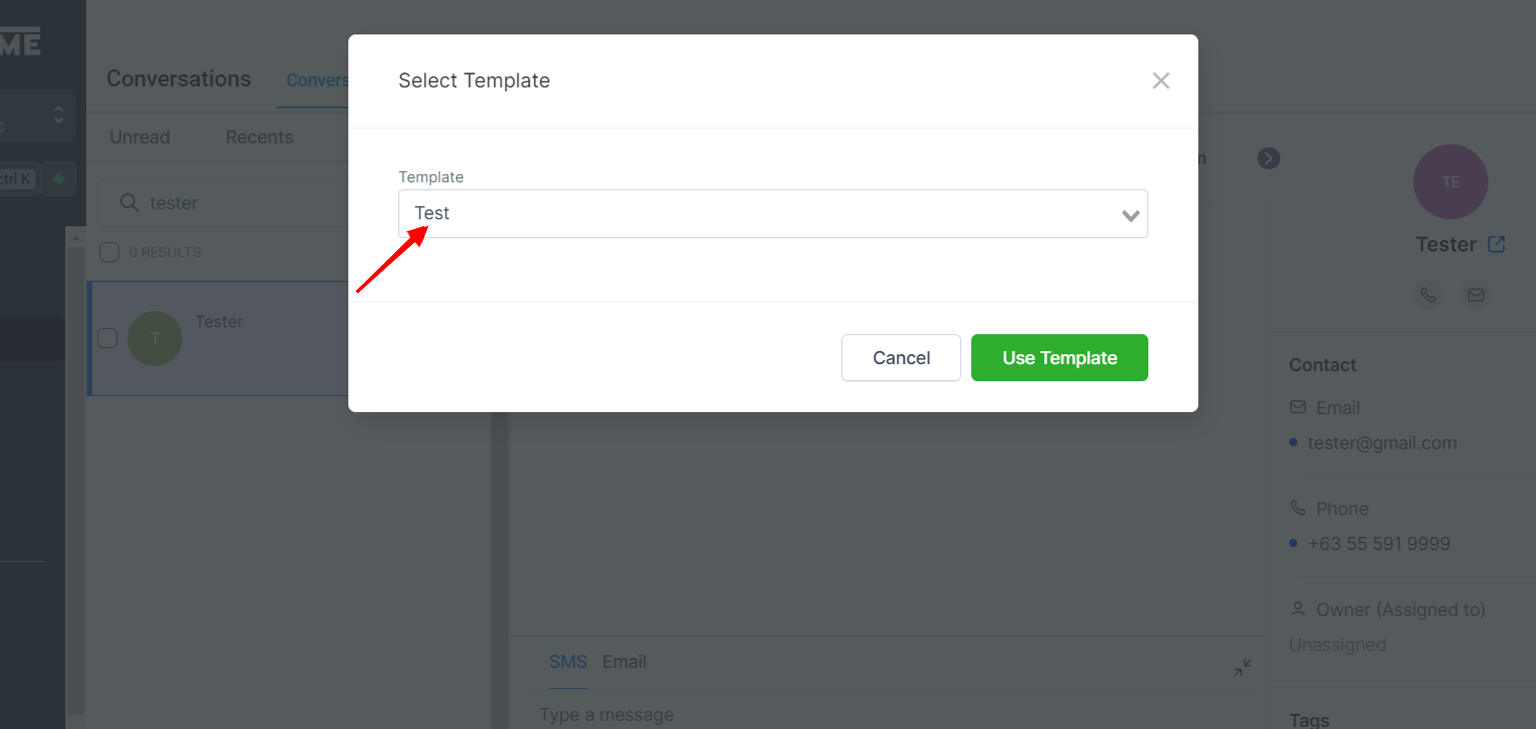
16. Click on Use Template
17. your template will insert into the text box automatically. Click Send to send your message