
Setting up and configuring company settings is essential for tailoring your system to meet your business needs and ensuring that your company’s information is accurately represented. Follow these steps to access and adjust your company settings:
Step 1: Access Company Settings
- Log in to your account dashboard.
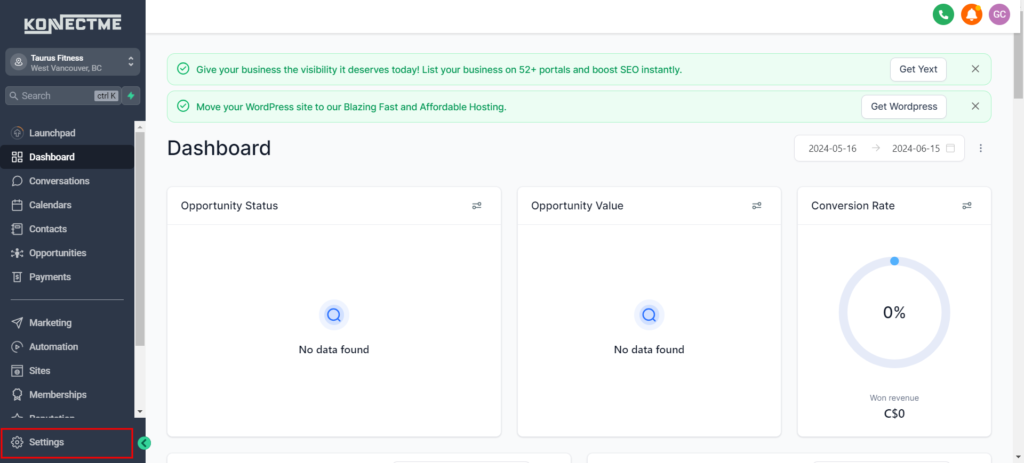
- Navigate to the “Settings” section from the left sidebar.
Step 2: Locate Company Settings
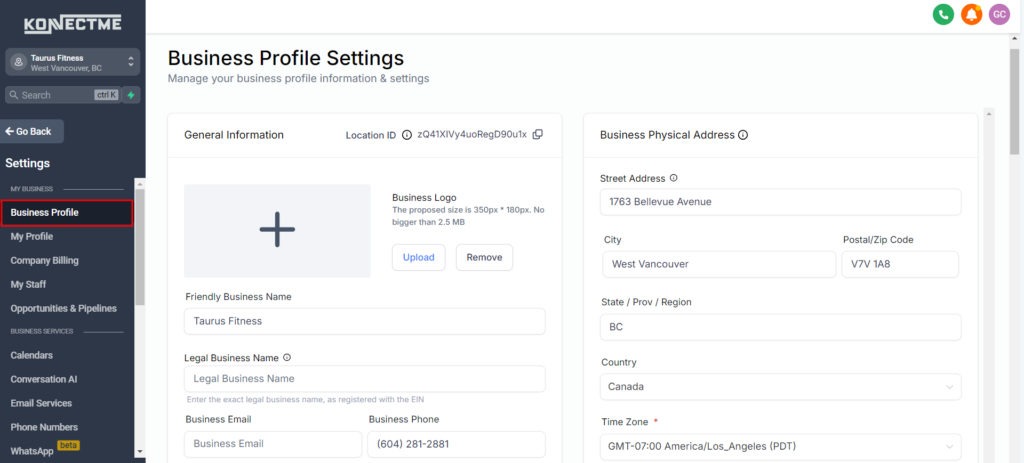
- In the Settings menu, click on “Business Profile.”
- This will take you to a page where you can manage various aspects of your company’s profile and preferences.
Step 3: Update Company Information
- Enter or update your company’s name, address, phone number, website URL, and other relevant information.
- Ensure that all details are accurate and up to date. Accurate information is critical for communication and credibility with clients.
Step 4: Upload Company Logo
- Look for an option to upload your company logo. This is often found in the branding or visual identity section.
- Click “Upload” and select the logo file from your computer. Ensure the logo file meets the recommended specifications: the proposed size is 350px by 180px, and the file size should be no larger than 2.5 MB.
Step 5: Set Up Email Preferences
- Configure your company’s email settings. This includes setting the default sender name, email address, and reply-to address for outgoing emails.
- Customize the email signature to include your company’s contact information, logo, and any legal disclaimers or promotional messages.
- Ensure these settings align with your branding and communication standards, providing a consistent professional appearance.
Step 9: Review and Save Changes
- Review all the information and settings you have entered to ensure accuracy and completeness.
- Click “Save” or “Update” to confirm and save the changes. Double-check that the new settings are reflected correctly in the system.
- Test the updated settings by navigating through different parts of the system to ensure everything is working as expected.
Tips
- Consistency: Ensure all company information is consistent across different settings and platforms to avoid confusion and maintain a professional appearance.
- Regular Updates: Periodically review and update company settings to reflect any changes in your business, such as new addresses, phone numbers, or business hours.
- Branding: Use your company logo and email settings to maintain consistent branding in all communications. This helps reinforce your company’s identity and professionalism.
- Security: Protect sensitive information by ensuring only authorized personnel have access to edit company settings and payment details.
By following these steps, you can effectively configure your company settings, ensuring your system accurately reflects your business’s identity and preferences, and providing a seamless experience for both your team and your clients.
Important Note:
Ensure you input the correct information to avoid mistakes. It’s crucial, as incorrect details can lead to issues. For example, using custom values might automatically input existing business information, which could cause errors. Double-check all entries for accuracy.