
Creating pop-up forms can help capture leads and engage website visitors effectively. Follow these steps to create and deploy a pop-up form:
Step 1: Access the Forms Builder
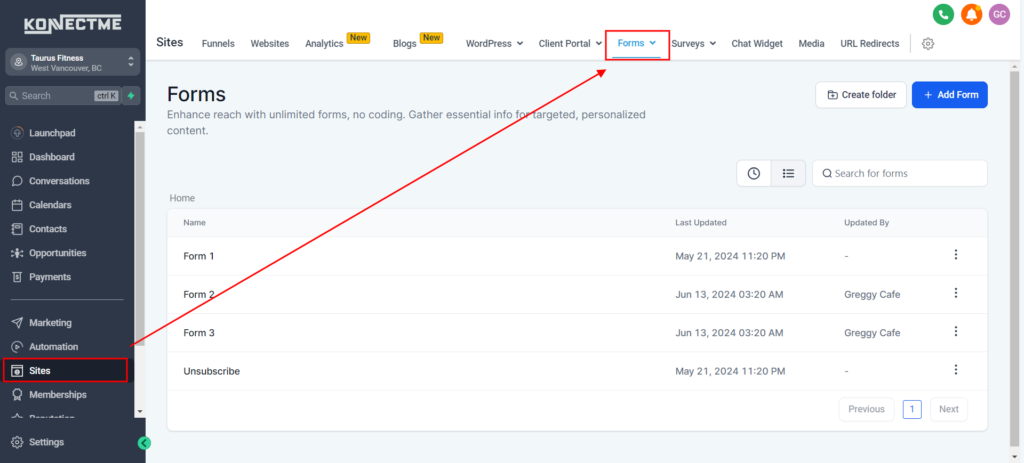
- Navigate to the “Sites” tab from the left sidebar.
- Select the “Forms” sub-tab.
- Click on “Builder” to open the forms builder interface.
Step 2: Create a New Form
- Click on “Create New Form” to start building your pop-up form.
- Give your form a name that reflects its purpose (e.g., “Newsletter Signup”).
Step 3: Design Your Form
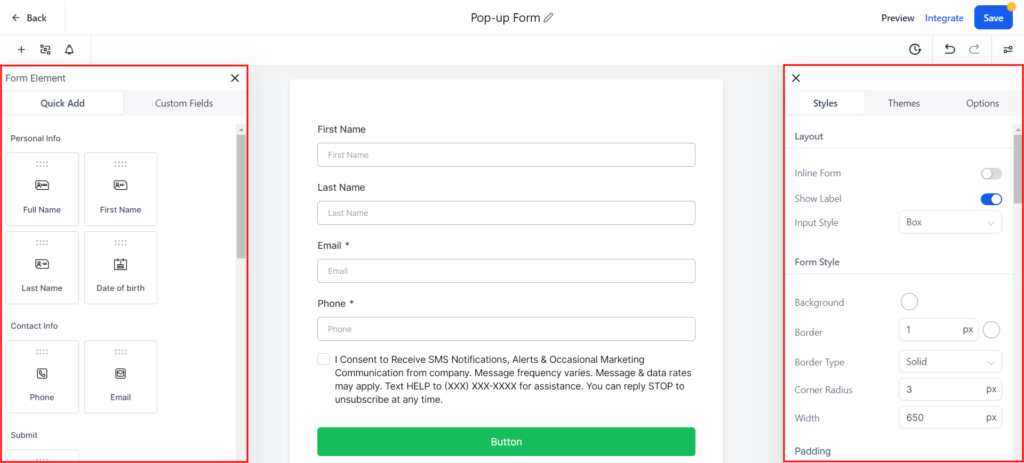
- Add Fields: Drag and drop the fields you need (e.g., Name, Email, Phone).
- Customize Fields: Edit field properties to match your requirements, such as making fields required.
- Design: Adjust the design elements like colors, fonts, and sizes to match your brand.
Step 4: Configure Form Settings
- Form Settings: Click on the settings tab to configure form settings such as submission actions and notifications.
- Confirmation Message: Set up a confirmation message or redirect to a thank-you page after form submission.
- Integration: Integrate the form with your CRM or email marketing platform to ensure captured data flows seamlessly into your system.
Step 5: Save and Publish the Form
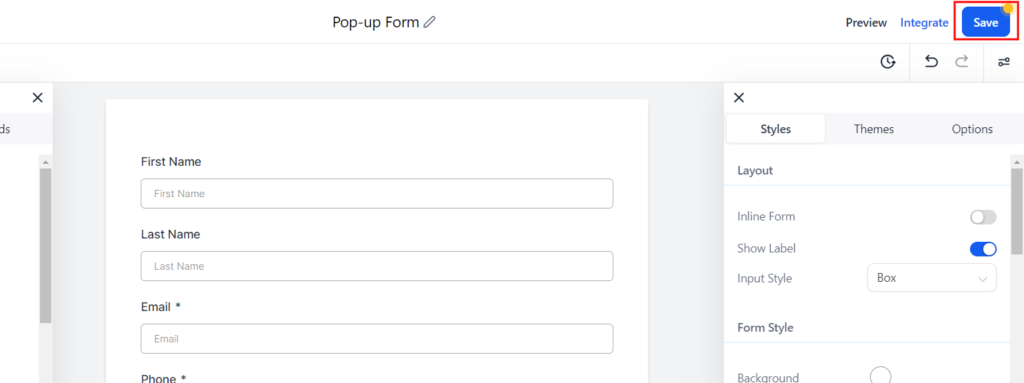
- Save your form by clicking on the “Save” button.
- Make sure the form is set to “Active” status.
Step 6: Add Form to Your Website
- Go to the “Sites” tab again and select the website where you want to add the pop-up form.
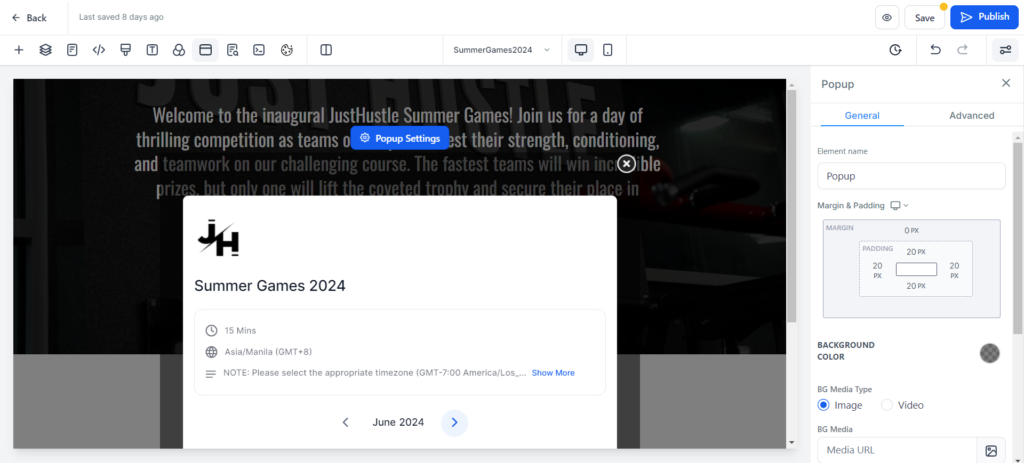
- On the navigations left side above click “Pop-up Settings”

Step 7: Create the Pop-Up
- Pop-Up Settings: Configure the settings for Pop-up and adjust accordingly
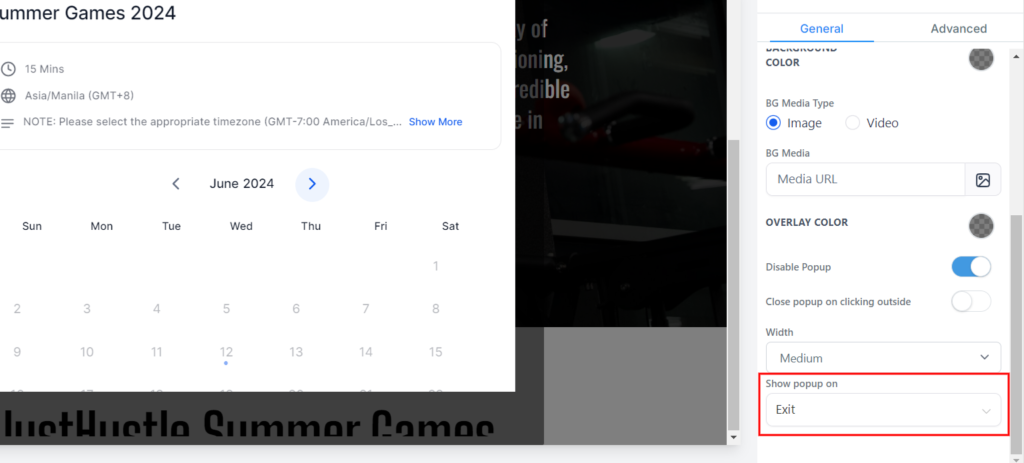
- Trigger Settings: On the right sidebar, scroll down and configure when to show the pop-up
Step 8: Save and Publish Your Website
- Save the changes to your website.
- Publish the website to make the pop-up form live.
Tips
- Test the Pop-Up: Test the pop-up form on different devices to ensure it displays correctly.
- User Experience: Ensure the pop-up is not too intrusive to maintain a positive user experience.
- Monitor Performance: Use analytics to track the performance of your pop-up form and make adjustments as needed.