
Using the Bulk Actions features in your Contacts/Smart Lists section, you can perform multiple one-off actions to selected or all contacts. Here’s how to merge duplicate contacts using the bulk action feature:
Step 1: Choose Your Contacts
- Navigate to your contacts.
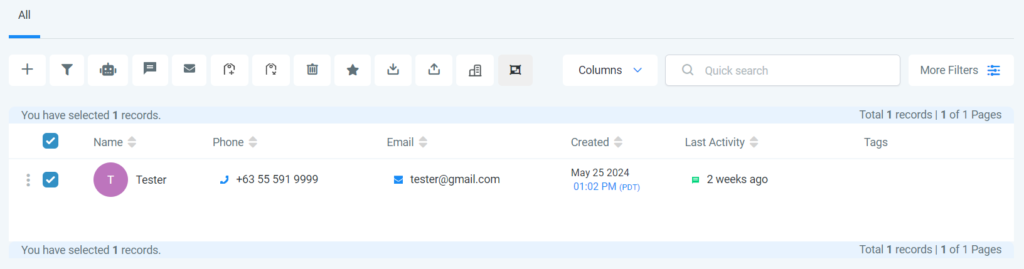
- Check the box to select contact records. (You can choose 2-10 contacts for this specific action.)
Step 2: Choose Your Action
- Choose the icon for “Merge Duplicate Contacts”

- This will open a pop-up for you to select what information to maintain and overwrite between the contacts. The “Master Record” will be the maintained, default record.
- Type CONFIRM and click “Resolve” in the bottom right corner to confirm these updates.
Enabling Duplicate Contact Merging in Settings
If you cannot see the merge option, you may need to enable it in your settings:
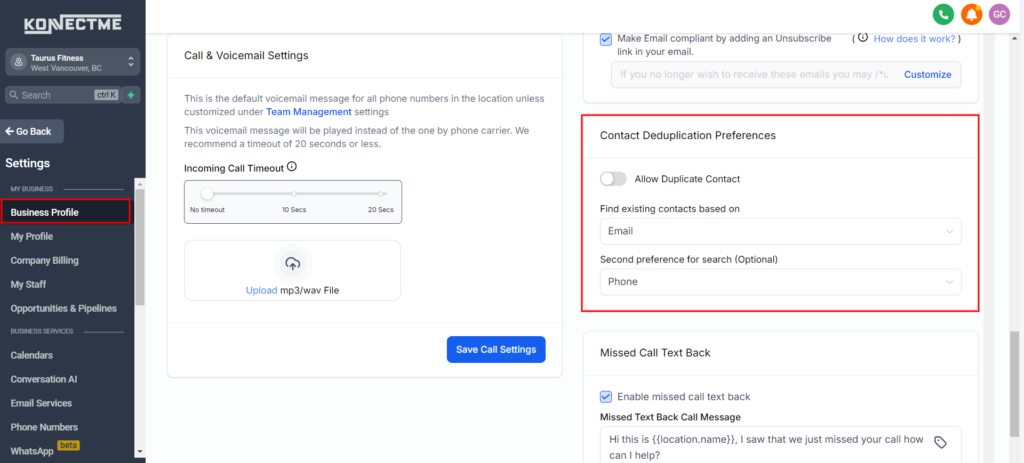
- Navigate to Settings.
- Go to Business Profile.
- Find and enable the option for Duplicate Contacts.
If you still cannot access the merge function after enabling it, please contact your account admin regarding your permissions.
By following these steps, you can efficiently manage and clean up your contact list, ensuring all your contact information is accurate and up-to-date.