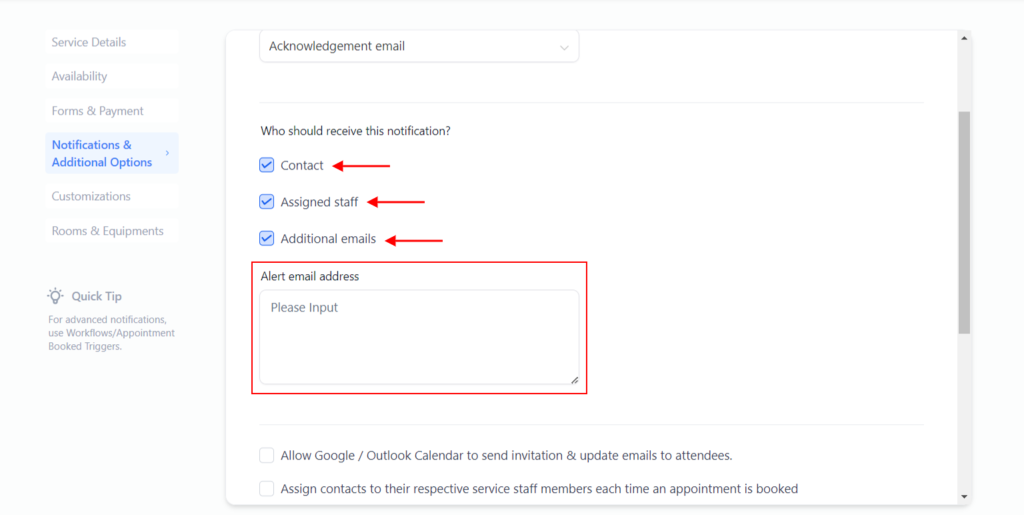
ending appointment notifications directly from the calendar settings no longer requires the need to create a separate workflow to send the notifications!
Here’s how to set this up:
1. From your dashboard go to…
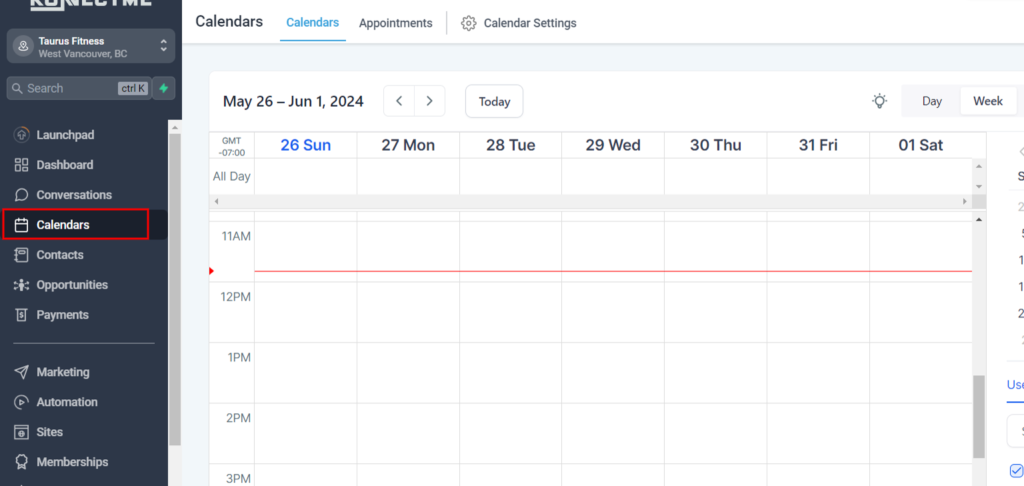
2. Click on Calendars
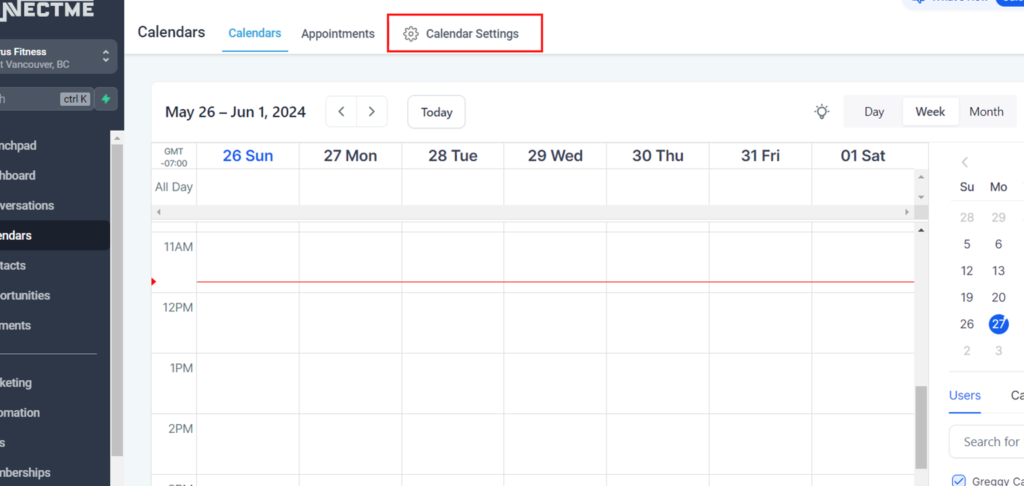
3. Click on Calendar Settings
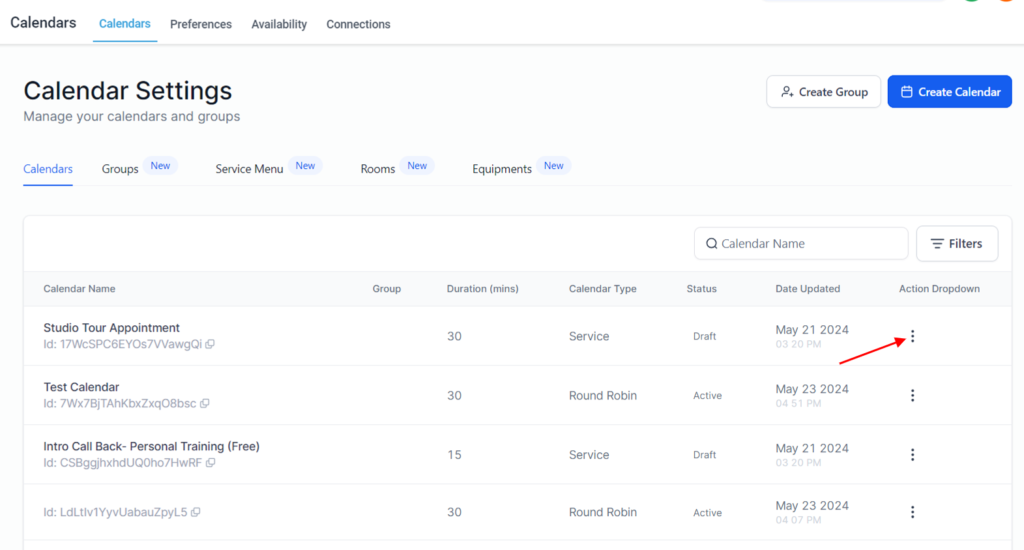
4. Click on the 3 dots for the calendar you wish to edit
5. Go to the ‘Notification & Additional Options’ section
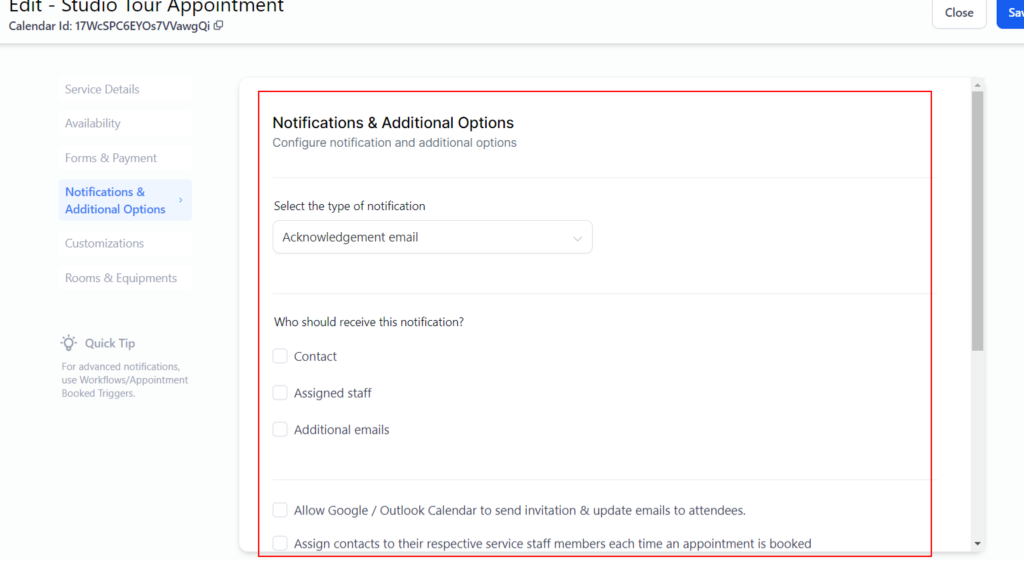
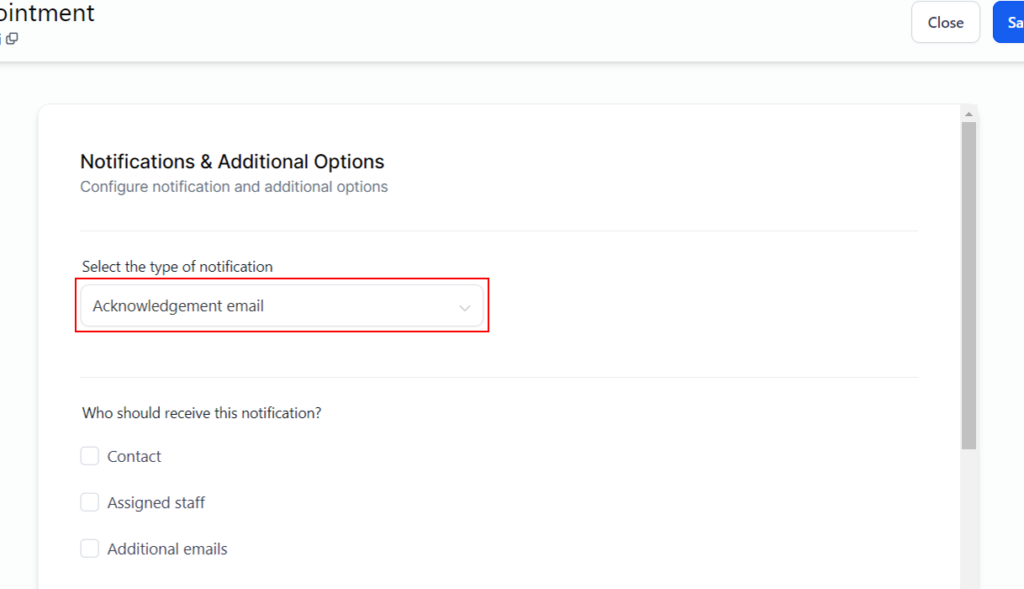
6. Click on Notification Type (currently this is only email)…
Note: More features will be coming soon
7. Click on Who should receive this notification?
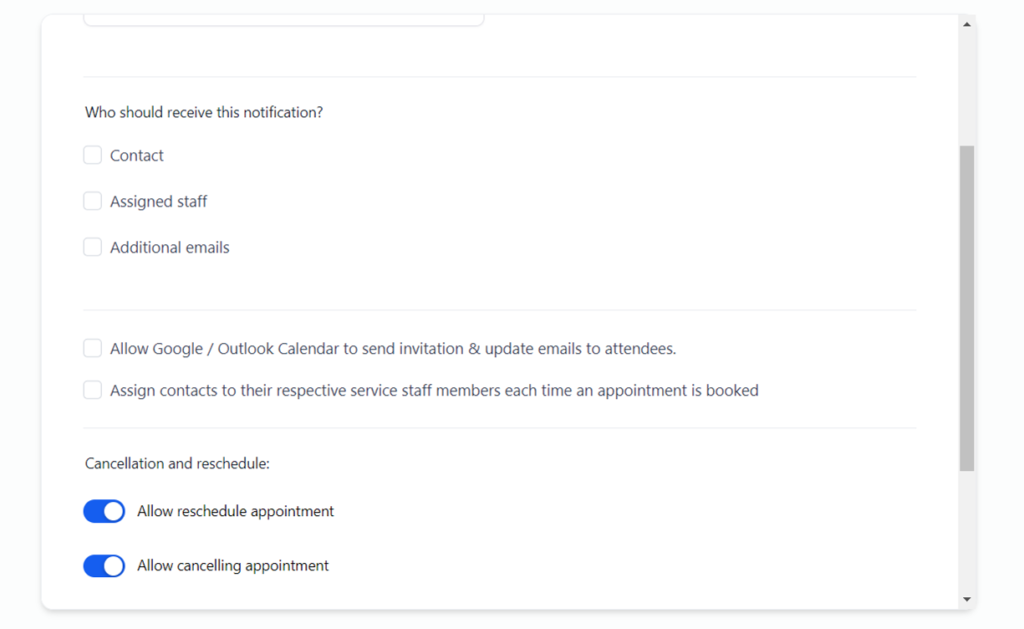
8. Check Assigned user (this is the staff member who is assigned to the calendar/appt)
9. Check Emails
This is only used if you need others to also receive notifications
10. “Enter emails you wish to receive notifications separated by comma”