
Effective task management and assignments can significantly boost your team’s productivity and ensure that critical tasks are completed efficiently. By leveraging automated workflows, you can streamline various processes, allowing your team to focus on high-priority activities.
One of the key benefits of automated workflows is the ability to assign tasks automatically. For example, when a new lead enters the system, a workflow can be set up to automatically assign a follow-up task to a specific teammate. This ensures that no potential lead is overlooked and that each one is given timely attention.
Similarly, if a member misses an appointment or an important session, the system can automatically assign a task to a team member to follow up with the missing member. This helps maintain engagement and ensures that members receive the support they need.
Moreover, task management systems can be configured to notify staff members when they have been assigned a new task. These notifications can include all the pertinent information, such as task details, deadlines, and any necessary context. This reduces the chances of miscommunication and helps staff members prioritize their workload effectively.
By automating these processes, you not only enhance productivity but also ensure a consistent and reliable approach to task management. Teams can operate more smoothly, with clear responsibilities and efficient handling of tasks.
To further personalize your task management workflow, consider these tips:
- Custom Notifications: Tailor notifications to include specific details relevant to each task, ensuring clarity and precision.
- Priority Levels: Assign priority levels to tasks to help team members manage their time and focus on the most critical activities first.
- Feedback Loops: Incorporate feedback mechanisms within the workflow to gather insights and continuously improve task assignments.
- Integration: Integrate with other tools and systems your team uses to create a seamless task management environment.
By implementing these strategies, you can create a dynamic and responsive task management system that enhances overall team efficiency and productivity.
Task Management Workflow Guide
Efficient task management is essential for ensuring productivity and timely completion of tasks within a team. This guide will walk you through setting up a workflow to automate task assignments and notifications.
Step 1: Define Your Workflow Objectives
Before creating the workflow, outline the specific tasks you want to automate. Common objectives include:
- Assigning tasks to team members when a new lead comes in.
- Assigning follow-up tasks for missed appointments or sessions.
- Notifying staff members of new task assignments with relevant details.
Task Management Workflow Guide
Efficient task management is essential for ensuring productivity and timely completion of tasks within a team. This guide will walk you through setting up a workflow to automate task assignments and notifications.
Step 1: Define Your Workflow Objectives
Before creating the workflow, outline the specific tasks you want to automate. Common objectives include:
- Assigning tasks to team members when a new lead comes in.
- Assigning follow-up tasks for missed appointments or sessions.
- Notifying staff members of new task assignments with relevant details.
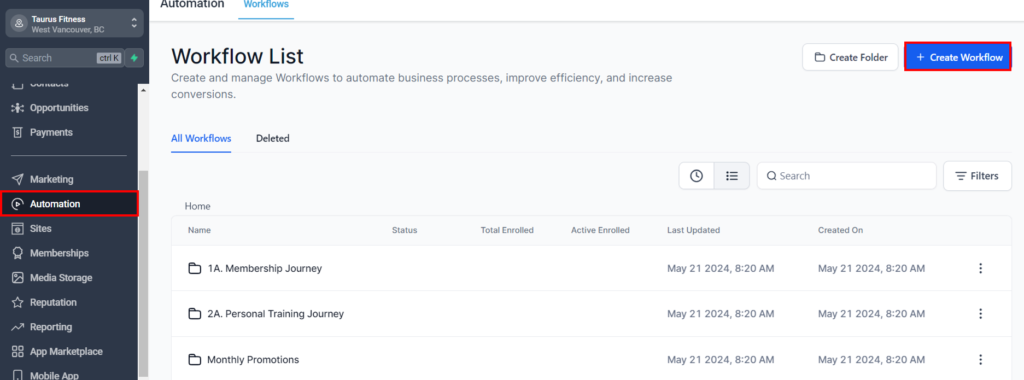
Step 2: Create a New Workflow
- Access the Workflow Creation and going to automation section: navigate to automation section from left sidebar
- Start a New Workflow: Click on “Create Workflow”.
Step 3: Set Up Triggers
Select a Trigger Event:
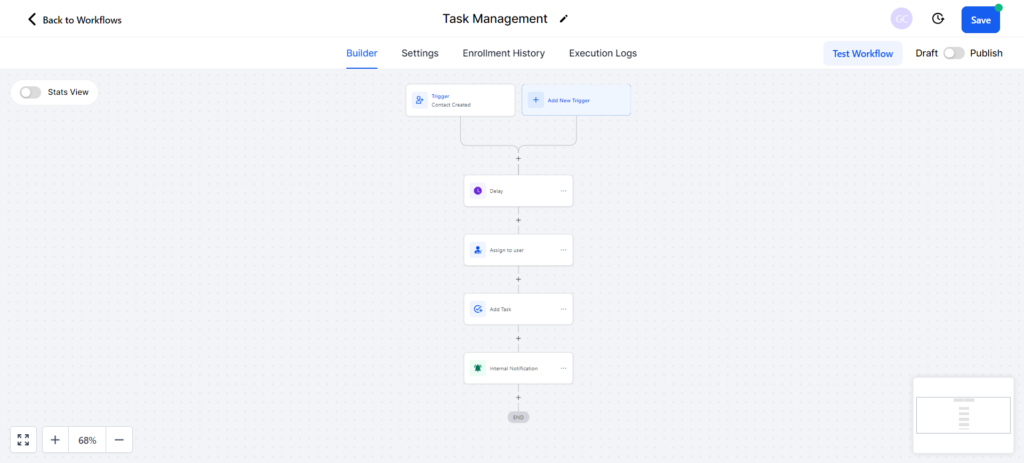
- Choose the event that will trigger the workflow. For example, select “New Lead Added” to initiate the workflow when a new lead enters the system
Step 4: Add Actions
After setting the trigger, you can add actions to the workflow:
- Add Task
- Assign To User
- Internal Notification
- Wait
Step 5: Test the Workflow
- Run a Test:
- Before activating the workflow, run a test to ensure it functions as expected. Create a test lead or simulate a missed appointment to see if the tasks are assigned and notifications are sent correctly.
- Review and Adjust:
- Review the results of your test and make any necessary adjustments to the workflow. Ensure that all steps are working seamlessly.
Step 6: Activate the Workflow
- Activate the Workflow:
- Once you are satisfied with the setup, activate the workflow to begin automating task assignments and notifications.
- Monitor and Refine:
- Continuously monitor the workflow’s performance and gather feedback from your team. Make refinements as needed to improve efficiency and effectiveness.