
Setting up your voicemail ensures that you never miss an important message. This guide will walk you through the steps to configure and manage your voicemail settings effectively.
By default, the Grow CRM will push incoming calls to the account holder’s cell phone that is associated with the account. When it does this, the phone’s voicemail will be the default message that callers hear before recording a message.
In the Grow CRM, you can override your cell phone’s voicemail by uploading a custom voicemail in your Grow CRM.
Here’s how you can accomplish this:
Accessing Voicemail Settings
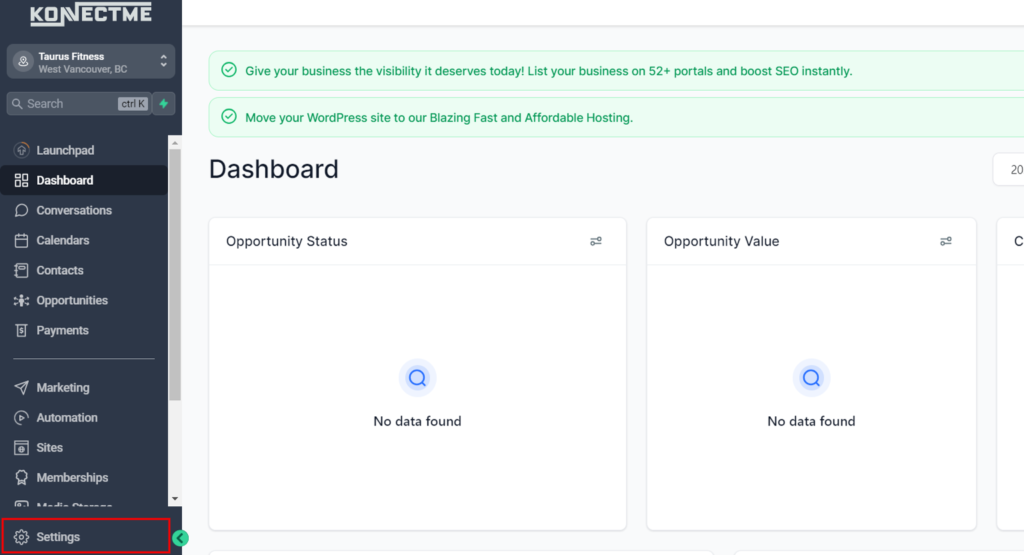
- Login to Your dashboard:
- In the main menu.
- Go to settings >phone numbers > voicemail & Missed Call Textback
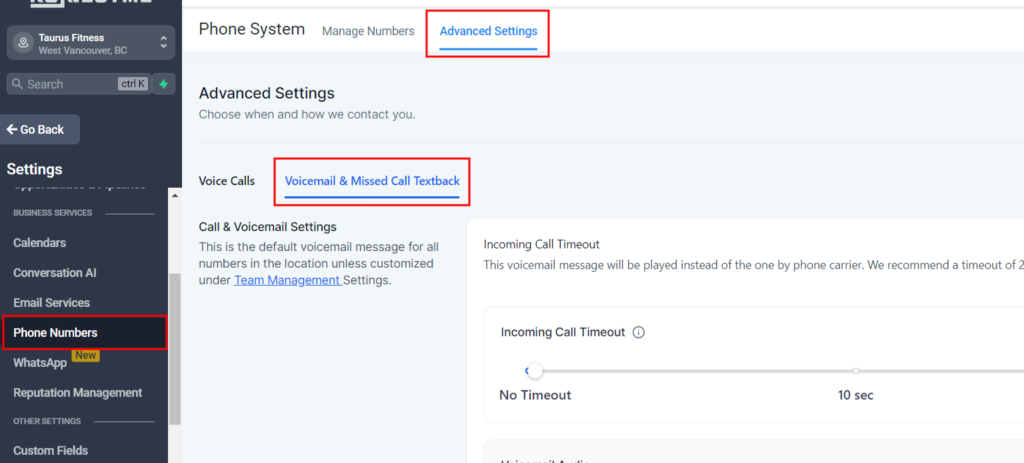
Configuring Voicemail Settings
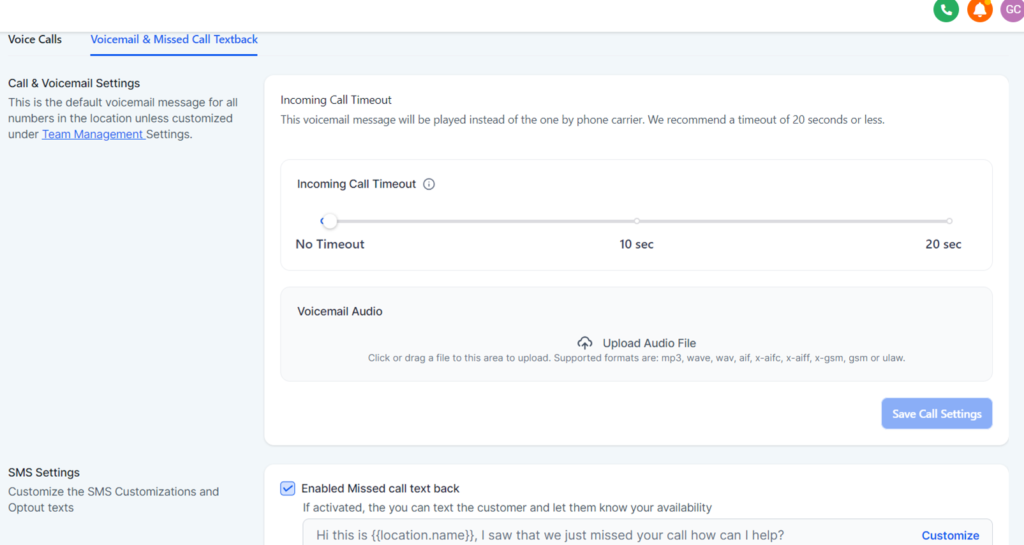
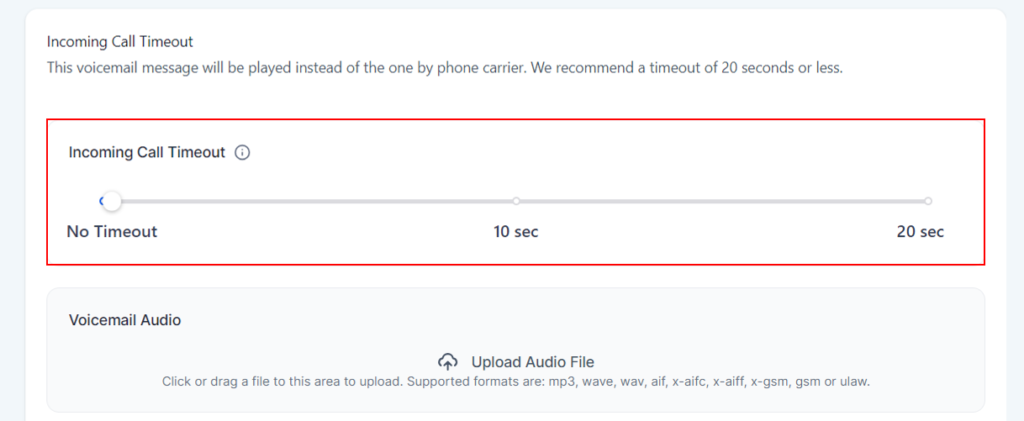
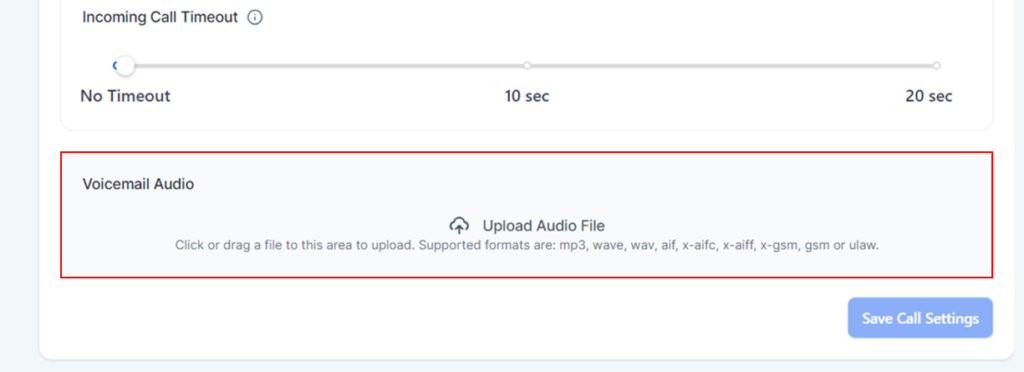
Incoming Call Timeout
- Recommendation: Set the timeout to 20 seconds or less. This will ensure that your custom voicemail message plays instead of the default carrier message.
Voicemail Audio
- Upload: Add your recorded voicemail greeting here to personalize your voicemail message.
- At the bottom right corner of the section click save.
SMS Settings
Customize SMS and Opt-out Texts
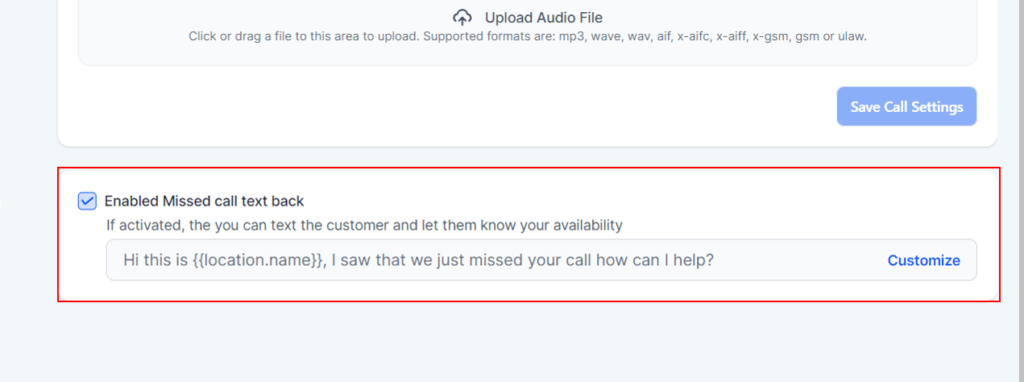
Enabled Missed Call Text Back (Feature Overview)
When activated, this feature sends a text message to customers who missed your call, informing them of your availability.
Suggested Text Template
- “Hi, this is {{location.name}}. We just missed your call. How can I help?”
Customization
You can personalize this message to better suit your needs.
Guide to Voicemail Settings
Setting up your voicemail ensures that you never miss an important message. This guide will walk you through the steps to configure and manage your voicemail settings effectively.
Accessing Voicemail Settings
- Login to Your Account:
- Open your communication platform.
- Enter your login credentials to access your dashboard.
- Navigate to Voicemail Settings:
- Go to the settings or preferences section.
- Look for the voicemail settings option.
Configuring Voicemail Settings
- Set Up Voicemail Greeting:
- Select the option to record a new greeting.
- Follow the prompts to record your message. Make sure it is clear and professional.
- Save your greeting once you’re satisfied.
- Adjust Voicemail Notifications:
- Choose how you want to be notified of new voicemails (e.g., email notifications, text messages, app alerts).
- Enter the necessary contact information for notifications.
- Save your preferences.
- Voicemail to Email:
- Enable the voicemail-to-email feature if available.
- Enter the email address where you want to receive voicemail transcriptions and audio files.
- Confirm and save the settings.
- Set Voicemail Password:
- Create a secure password for accessing your voicemail.
- Confirm the password and save it.
- Playback Options:
- Choose how you want to play back your voicemails (e.g., through the app, phone call, or email).
- Test the playback to ensure it works as expected.
Managing Voicemails
- Listening to Voicemails:
- Access your voicemail inbox from your communication platform.
- Select the voicemail you want to listen to and play it back.
- Deleting Voicemails:
- Choose the voicemail you want to delete.
- Select the delete option and confirm the deletion.
- Saving Important Voicemails:
- Mark important voicemails for future reference.
- Download and save voicemails to your device if necessary.
- Transcription Services:
- Enable transcription services if your platform supports it.
- Read transcriptions of your voicemails directly from your inbox.
Best Practices
- Regularly Check Voicemails: Make it a habit to check your voicemail inbox regularly to ensure you don’t miss any important messages.
- Keep Your Greeting Updated: Update your voicemail greeting periodically to reflect any changes in your availability or contact information.
- Maintain Security: Use a strong password for your voicemail and change it regularly to maintain security.
- Backup Important Messages: Download and backup important voicemails to prevent loss of crucial information.
Troubleshooting
- Voicemail Not Working: Ensure your voicemail settings are correctly configured and your account is in good standing.
- Notification Issues: Double-check your notification settings and contact information to make sure you’re receiving alerts.
- Playback Problems: If you can’t play back voicemails, check your internet connection or try using a different playback method.