
Adding staff to your system allows you to assign tasks, manage roles, and enhance collaboration. Here’s a step-by-step guide:
1. Log In: Access your dashboard
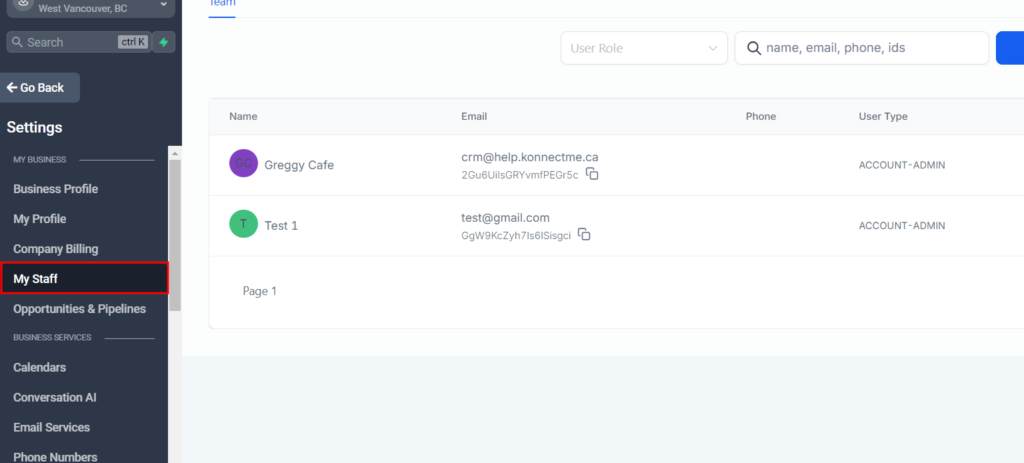
2. Navigate to Team Management:
- In your dashboard.
- Select “Settings.”
- Choose “My Staff”
3. Add New Staff:
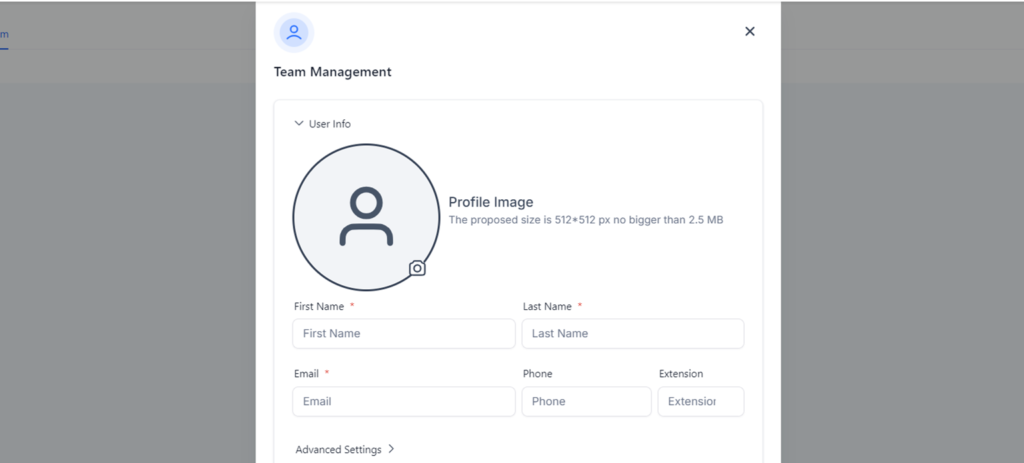
- At the top right corner click on “Add Employee”
- Enter the required details such as name, email, phone number, and role.
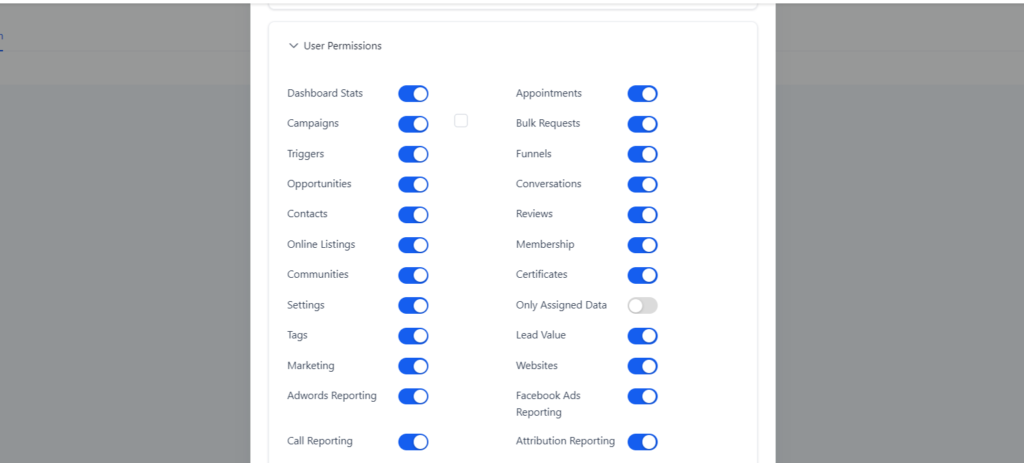
4. Set Permissions:
- Enable permission to new staff member (Note: this can vary to the staff members roles and can be change later on).
- Customize specific permissions as needed, allowing access to certain modules or features.
5. Save and Notify:
- The new staff member will receive an email notification with login details and instructions.
- Click “Save” to add the staff member to your system.