
Manually generating a review request link allows you to directly share it with customers, prompting them to leave reviews for your business. Follow these steps to create a review request link:
Review Request: Quick Action
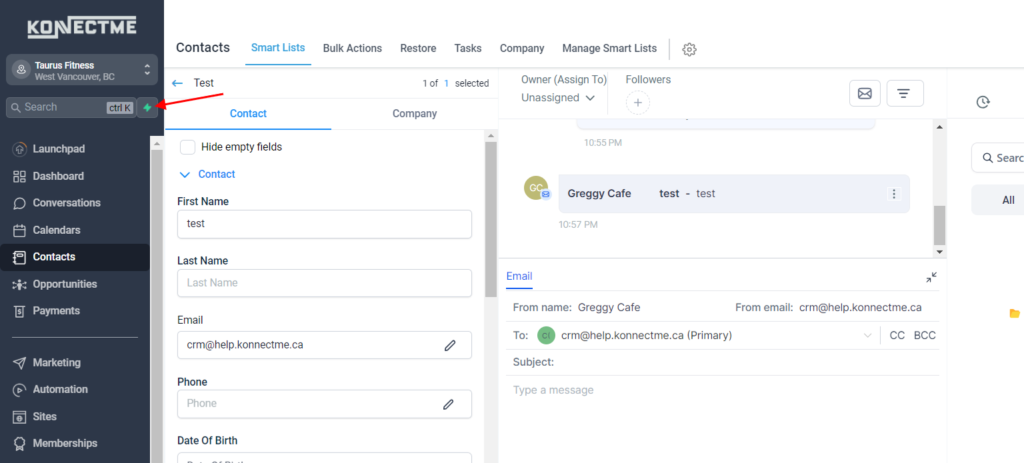
- Locate the thunder symbol at the top left corner next to the Universal Search Feature.
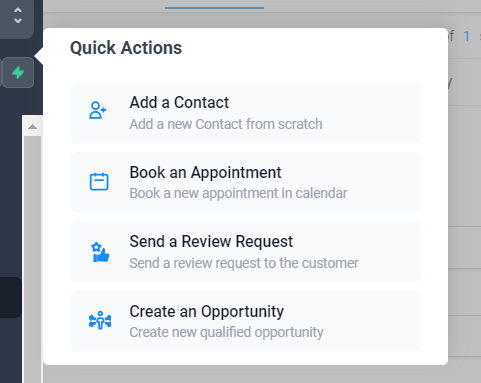
- After locating the symbol, simply click on it, and a window will pop up (see image below for reference).
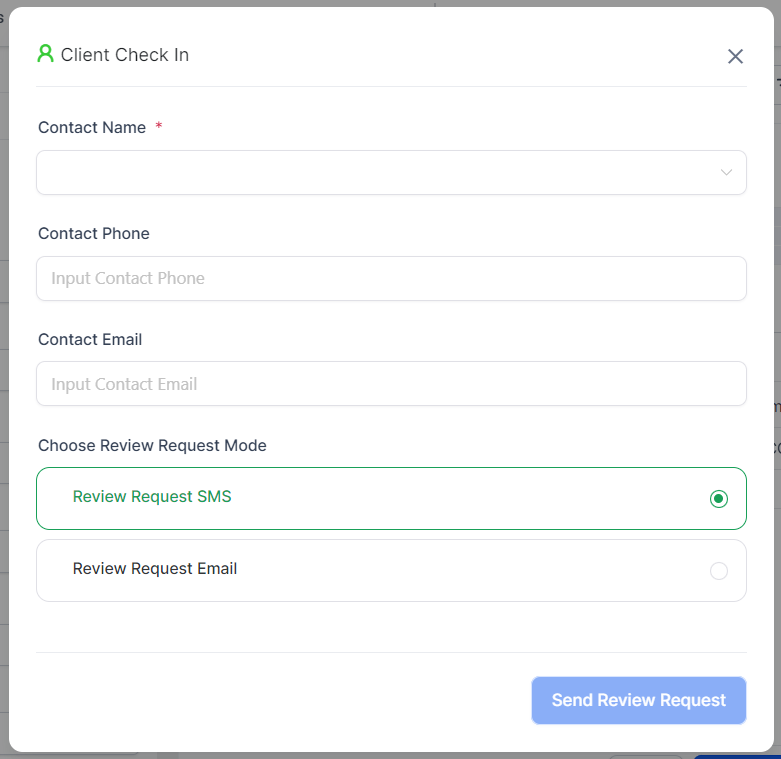
- Find and click on “Send a Review Request”. Another pop-up will appear; simply fill it out accordingly.
Review Request: Reputation Tab
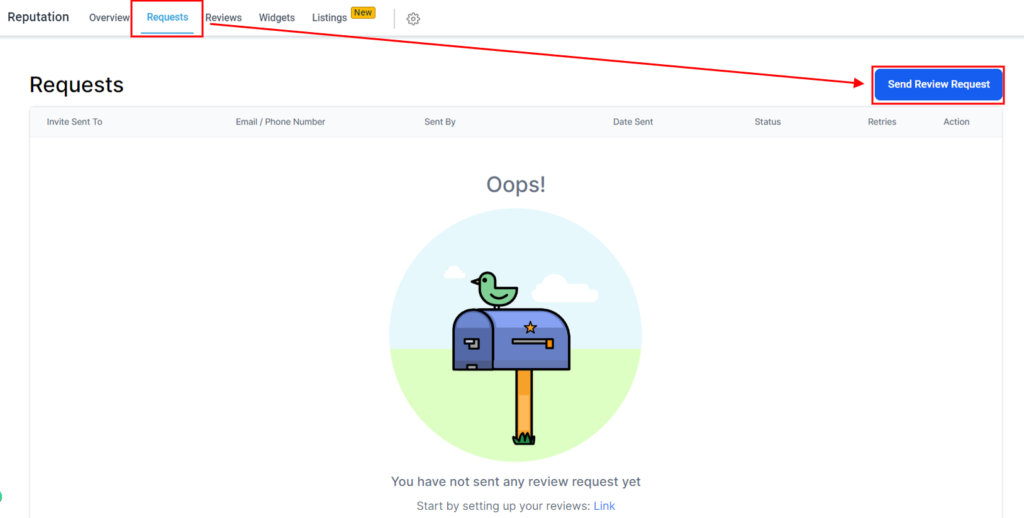
- Login in to your Dashboard > Reputation Tab
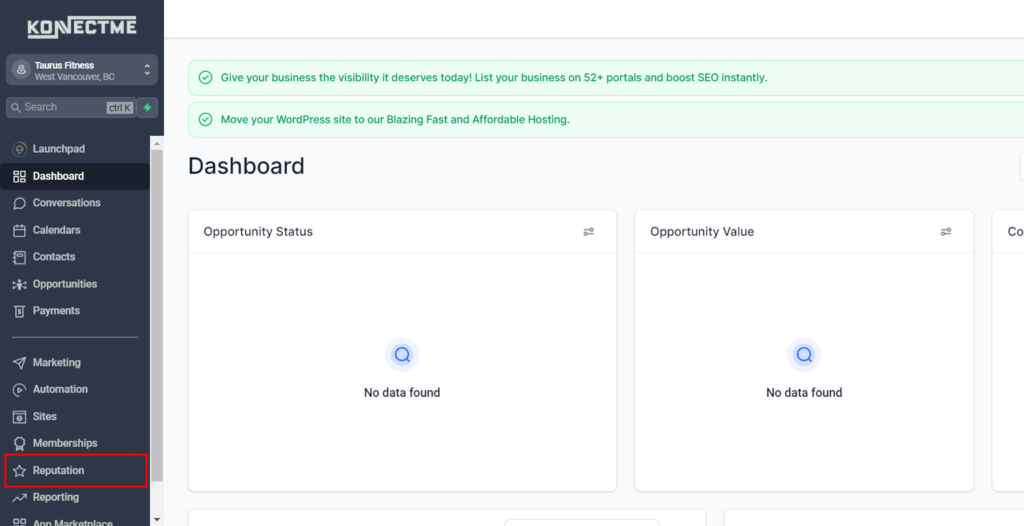
- In the top left menu bar, navigate to ‘Requests’ >> Once you’re in the Requests section of the Reputation tab, you can manually request a review by clicking the ‘Send Review Request’ button located at the top right.
Tips
- Timely Requests: Send the review request shortly after a positive interaction with the customer to increase the likelihood of receiving a favorable review.
- Follow Up: Consider following up with customers who haven’t left a review after receiving the link to gently remind them.
By following these steps, you can manually generate a review request link and effectively collect reviews to build credibility and trust for your business.