Do you have opportunities in your leads pipeline that you want to move after a set period of time?
Updated over a week ago
If you’ve had your CRM set up for a while, you’ve inevitably had leads trickle into your sales pipeline (AKA Opportunities) that you may want to remove them after a set period of time to keep your pipeline clean and updated.
You can set this process up automatically using the following steps:
1. Go to your dashboard
2. Click on Automation

3. Click on Create workflow then create from scratch

4. Click on Add New Workflow Trigger

5. Then find Stale Opportunities


6. Next, create a filter

7. First filter is “In pipeline”

8. Select your opportunities pipeline from the secondary drop down
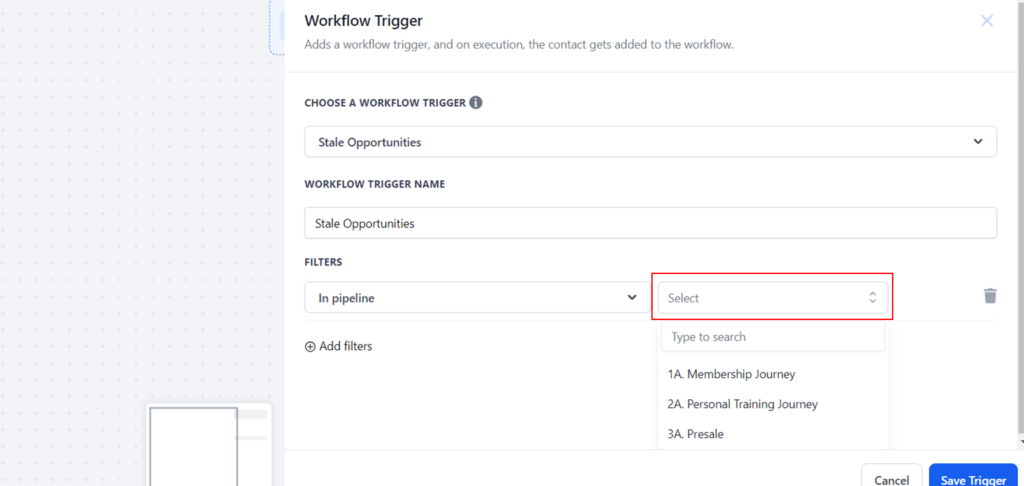
9. Next, create a second filter: Click Add filters

10. From the drop down, select Pipeline stage

11. Select the stage you want. In this example we are using the DND Lost
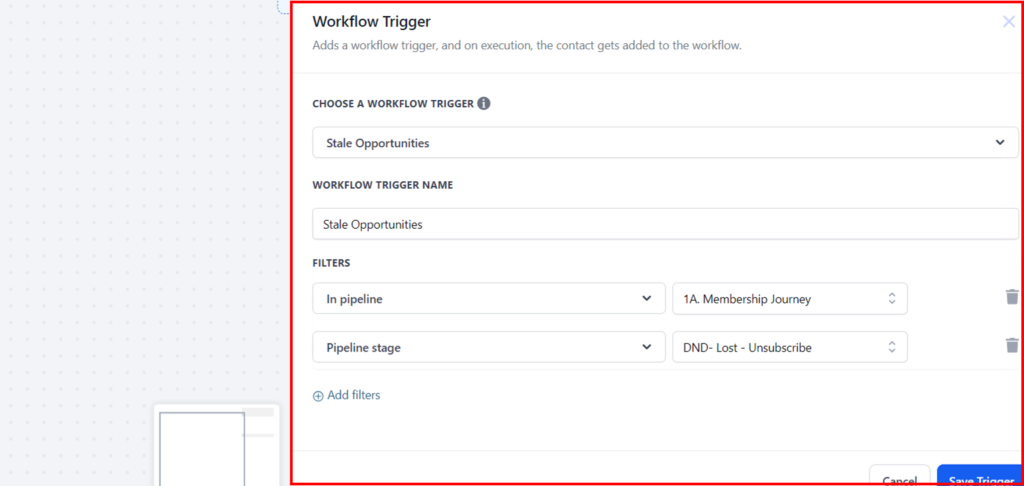
12. Next, create a 3rd and final filter:
- Click on Add filters
- Locate: Duration in days
- Type the number of days you want the system to check for this trigger. We recommend 30-45 days
Your finished filters should look like this

13. Click on Save Trigge

14. Now, after the trigger is completed we need to add an action in the workflow. Click the +

15. Locate the “Remove Opportunity” option
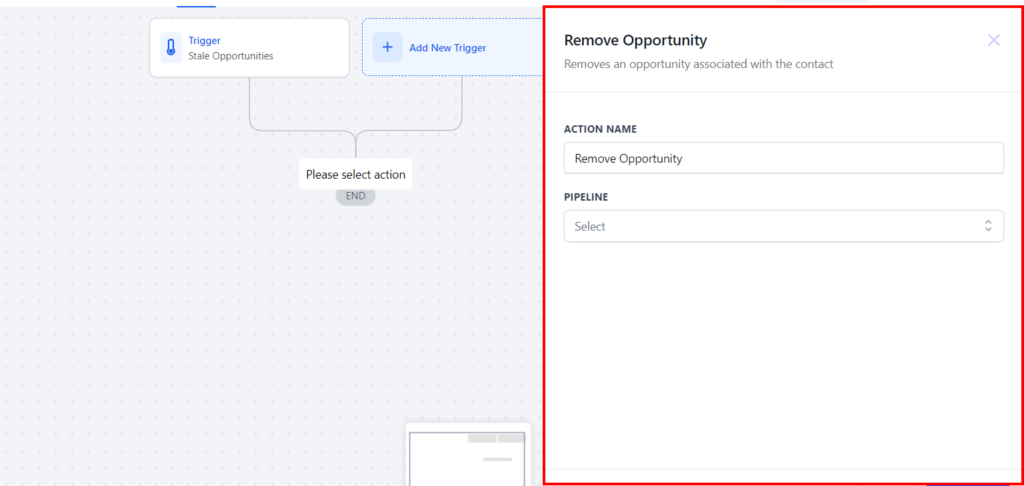
16. Make sure you select the pipeline that it needs to remove the person from

17. It should look something like this:

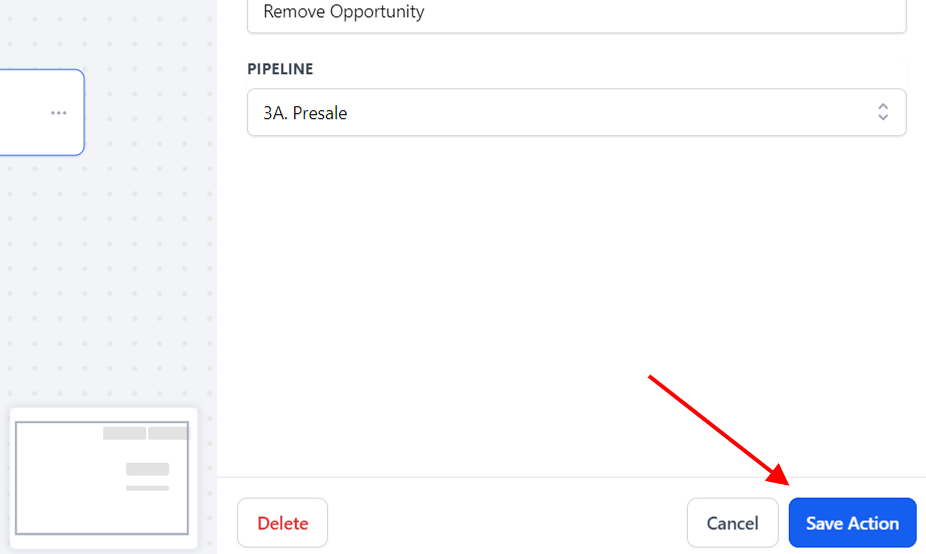
18. Click on Save Action
20. Rename the workflow : Name it however you want


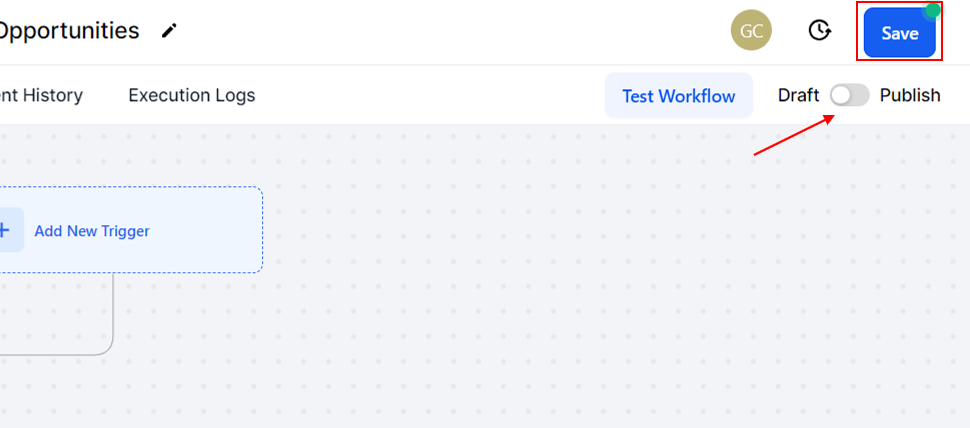
21. Click Publish and then save to make your new workflow live