Manual Actions are tasks added to your system in the form of a queue and must be completed manually.
Manual Actions are tasks added to your system in the form of a queue. They become available in a user’s account and are marked as complete once the user manually completes a task. To create and manage manual actions, follow the steps below.
Step 1: Create a Workflow
- Navigate to Workflows
- Click + Create Workflow
- Type in a Workflow Name.
- Choose a folder where the Workflow will be added from the dropdown.
- NOTE: You may also edit an existing Workflow instead of creating a new one.
Step 2: Set up the Workflow Configuration
- Select Workflow Configuration to add information such as:
- Window – Configure when the Workflow will run
- Users – Assign users to Workflow
- Next Workflow – Workflow that is next in the pipeline
- From address – Shows from address
- Lead Value – $ value of lead
- Tags – Tags assigned to Workflow
- Multiple Allow – Allows Workflow visitors to visit the same or next Workflow in the pipeline multiple times
- Stop on Response – Stops all subsequent events in the case a lead responds to Workflow
- Event Start Date – Choose when the Workflow will begin
- Save to confirm your changes.
Step 3: Add an Event
- Click on + Add Event

- Click on Manual SMS or Manual Call for an event.
- For a Manual SMS:
- Type SMS name
- Select template if needed
- Custom Values – Select values from the drop down to be added to your SMS message
- Trigger Links – Provide links to triggers created in your account
- In the text box you may type out the SMS you want sent out
- Custom Time – Toggle Custom time to on if you’d like the SMS to be sent out at a specific day and time
- Attach file – Files such as logos can be added here
- Add File Through URL – Add link here
- You can test your message by entering a number and clicking on Send Test.
- Click Save once you have the desired manual SMS
- For a Manual Call:
- This Adds manual call as a task for selected users after user is added to the Workflow
- Task is marked as complete after task is executed.
- Save any changes you make to the Workflow, and switch it from Draft to Published mode, in order for it to run.
Step 4: Accessing and Completing the Tasks/Manual Actions.
- Once Contacts are added to the Workflow(s) with manual SMS or call events, the tasks will be generated and formed into a queue you can access in the system.
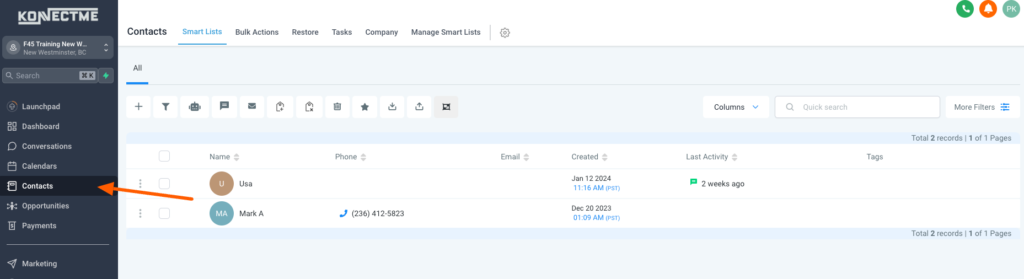
- Navigate to Contacts >Manual Actions.
- Here you will see a list of your pending tasks/actions.
- They can be sorted by Workflow or Assignee (if you have multiple users). Once executed, the tasks can be marked complete.